Stay in the
conversation.

Brain keeps the details.

Your meeting workspace for live transcripts, familiar voices, and useful answers. Right on your computer.

Version 0.2.84 · 95 MB

macOS 26 (Tahoe) or later · Apple silicon Mac

Needs about 10 GB free to set up · the built-in summary model works best with 32 GB of memory or more

Already have Brain? Open the new download and click Replace the older Brain. Your meetings and settings stay.

An early Windows preview for practice and feedback. Read the preview notes before you begin.

Version 1.0.7.0 · Windows 11 · Intel or AMD 64-bit PC

Explore what Brain can do

Brain for Mac · Brain for Windows

A little less note-taking.
A lot more conversation.

Detect the call. Follow the words. Know who said what. Explore the meeting tools in Brain for Mac and for Windows.

Mac: The call starts.
You choose what follows.

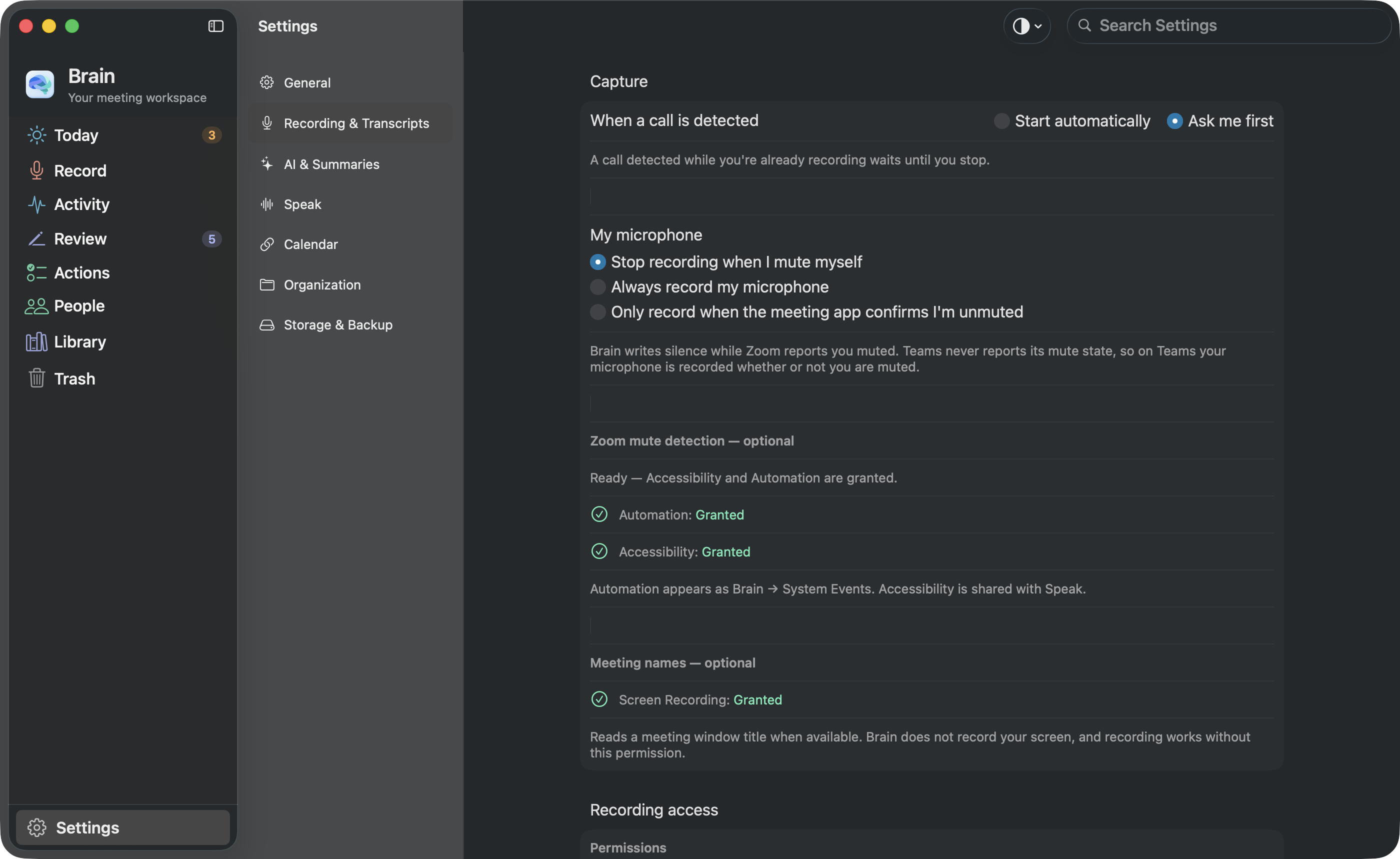
Brain notices Zoom and Microsoft Teams calls on your Mac and offers to record from the menu bar. In Settings › Recording, choose whether Brain asks you first or starts recording on its own. Asking first is the default.

Tell everyone before recording. These screens come from a test copy of the current Mac app filled with sample content, not from a real call.

Mac setup
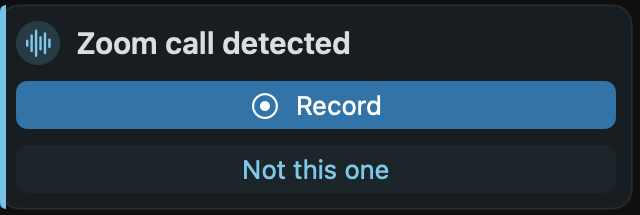
The Zoom call detected card in Brain’s Mac menu-bar panel, with Record and Not this one.
The call-detected card in the Mac menu bar The setting behind it

Windows: The call starts.
You choose what follows.

Brain detects Zoom and Microsoft Teams calls. In Windows Settings, choose whether to record automatically, ask first, or leave recording to you.

Tell everyone before recording. Recording a real call through a real microphone has not been tested yet in this Windows preview.

Windows setup
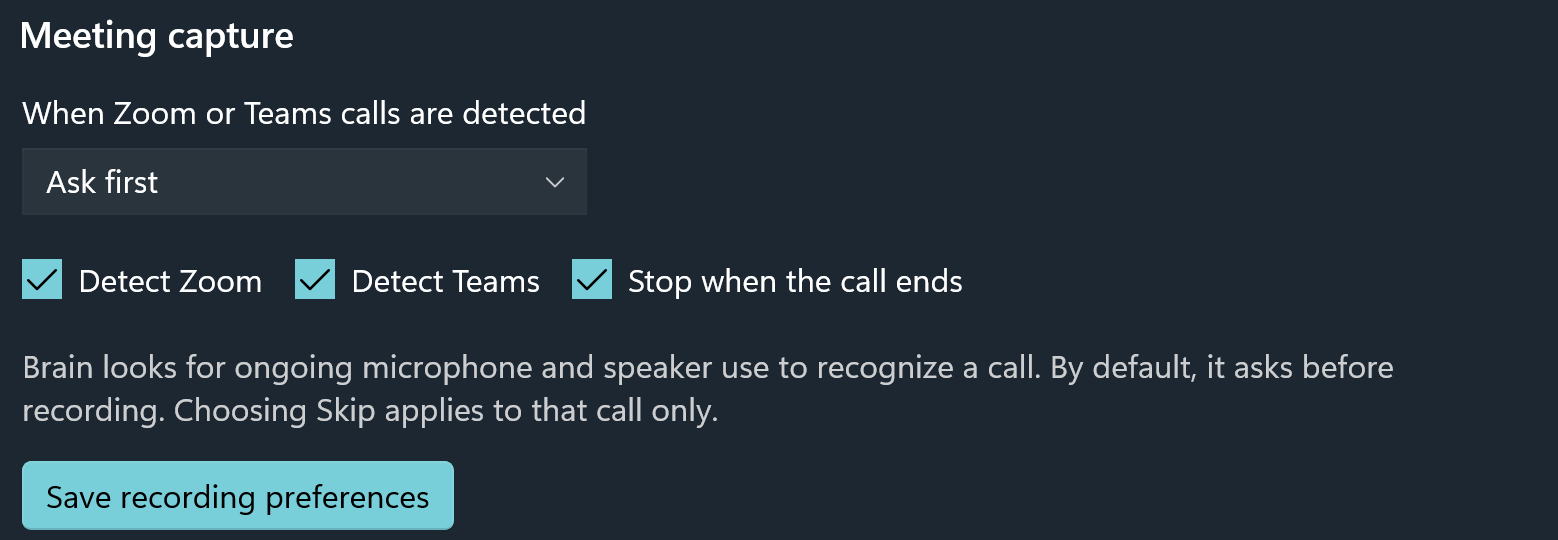
Brain for Windows recording settings, including the policy for detected Zoom and Teams calls.
Recording settings in the Windows app

Mac: The conversation,
in front of you.

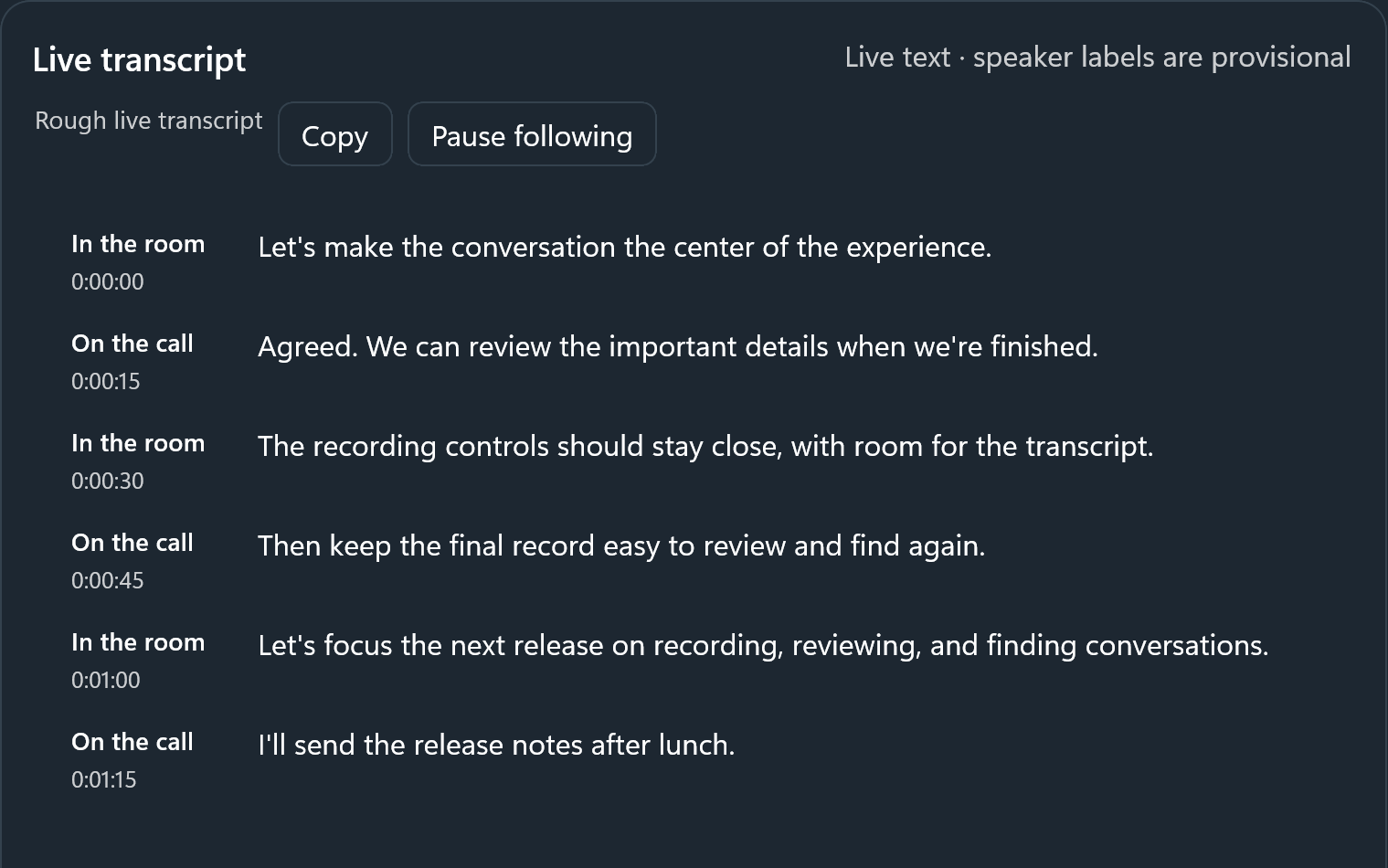
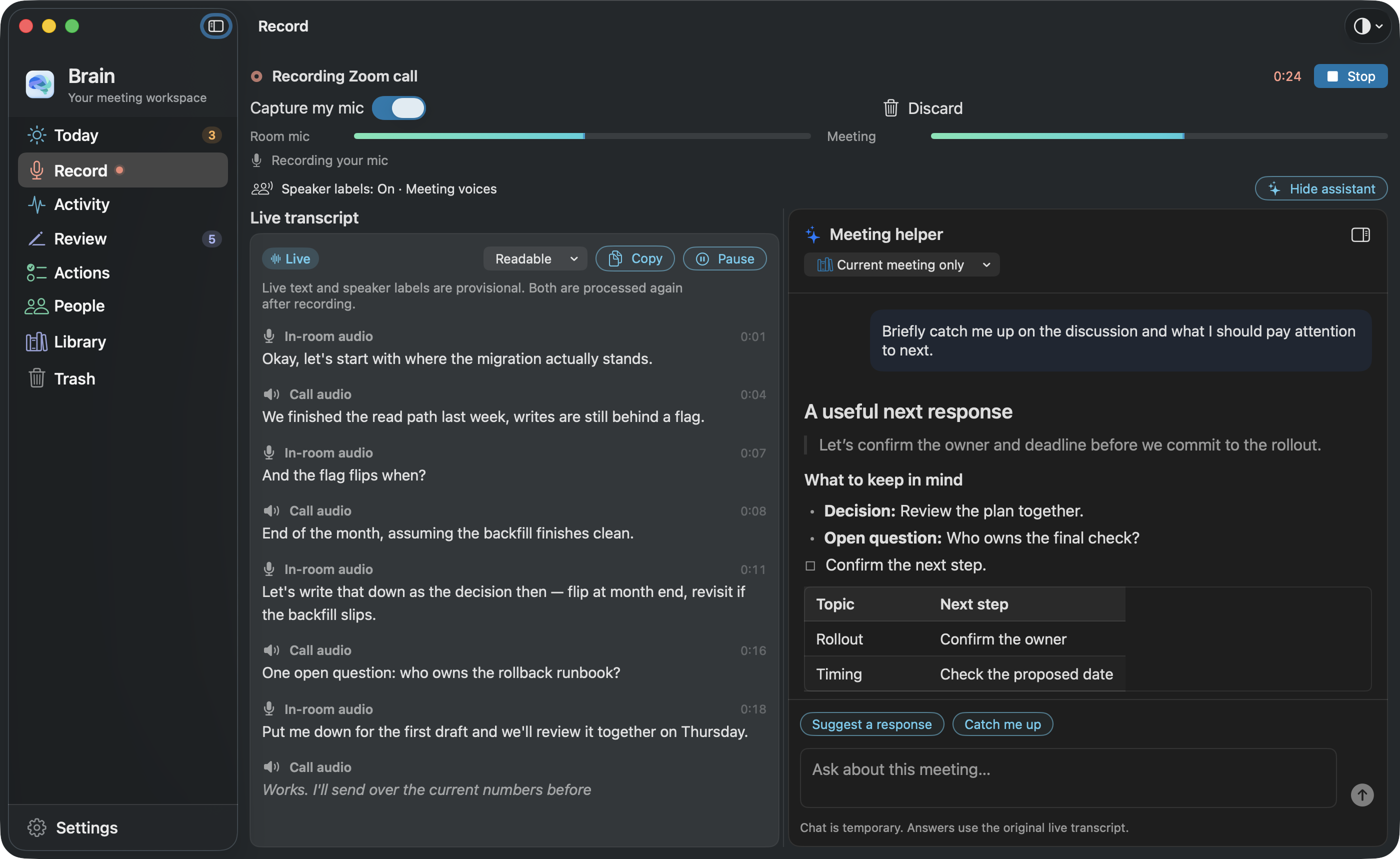
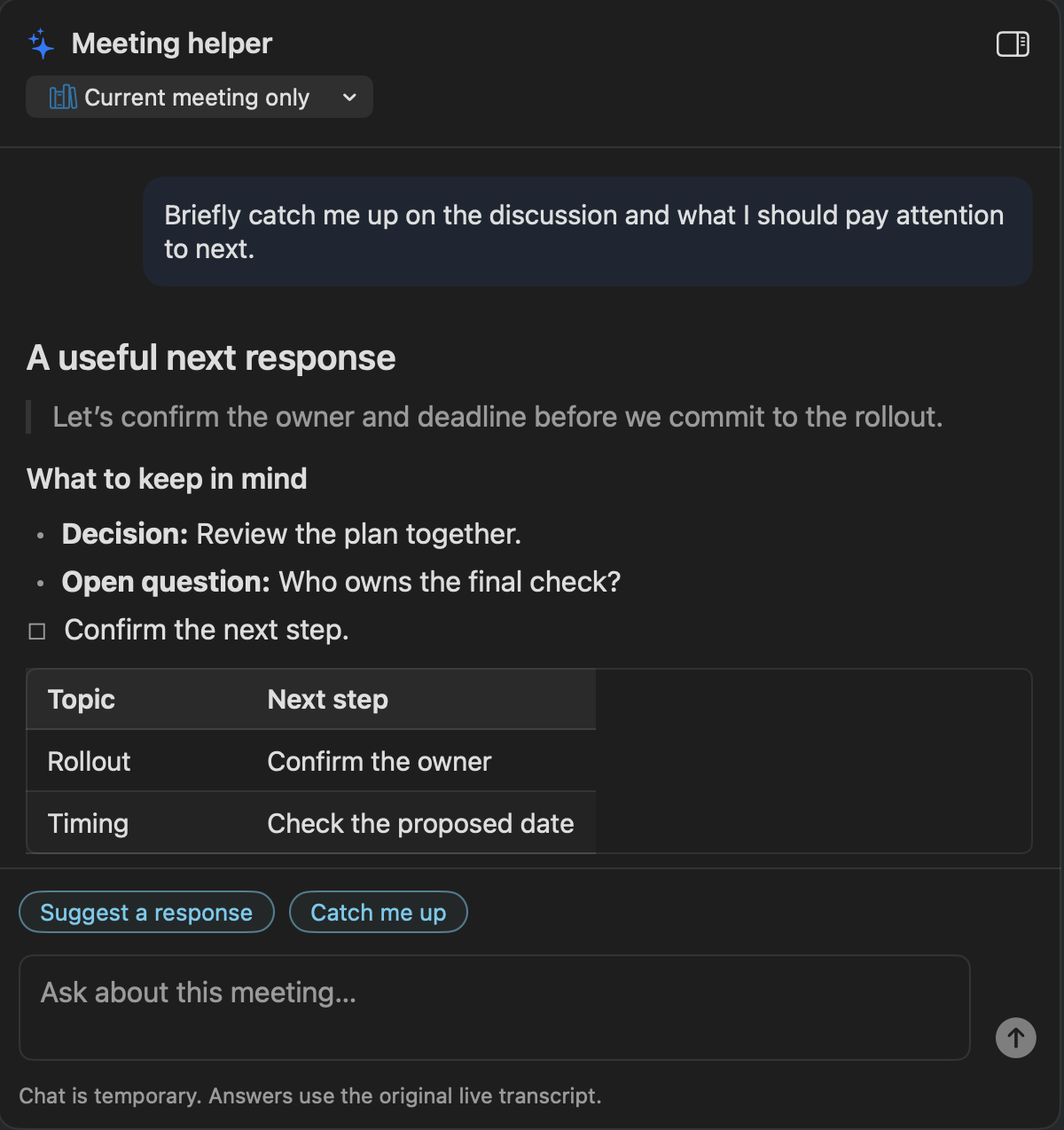
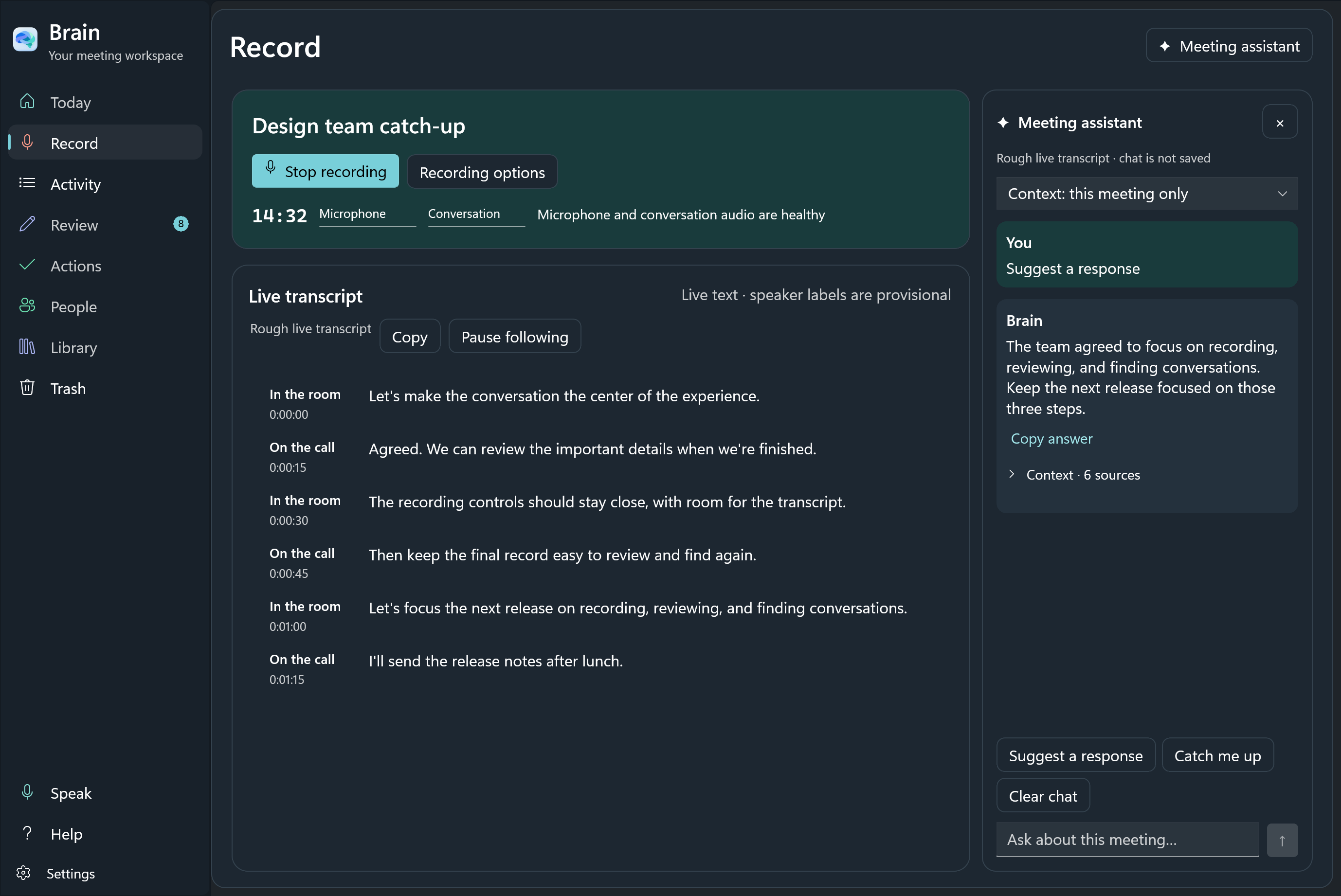
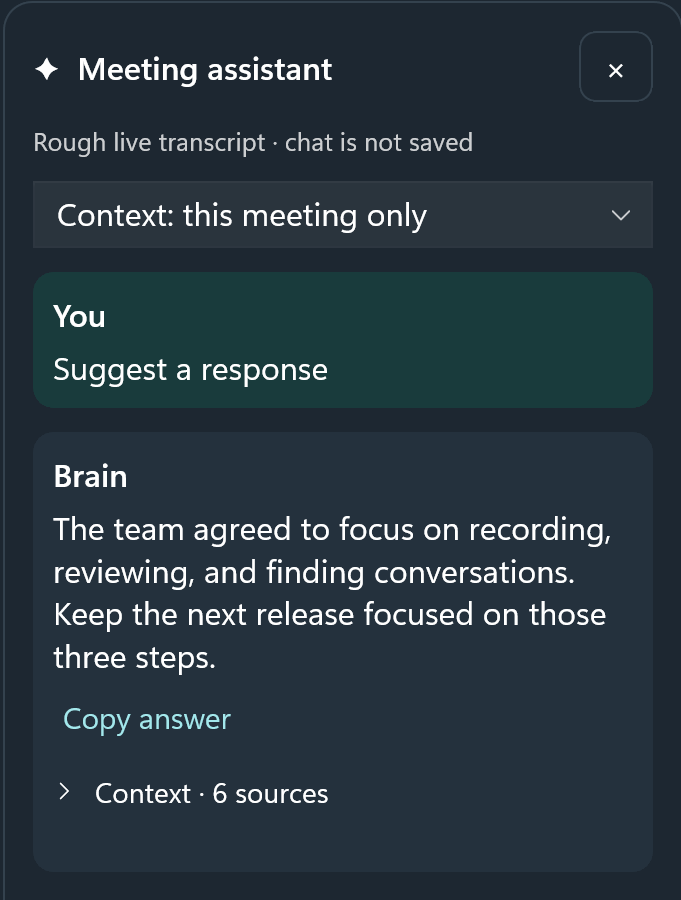
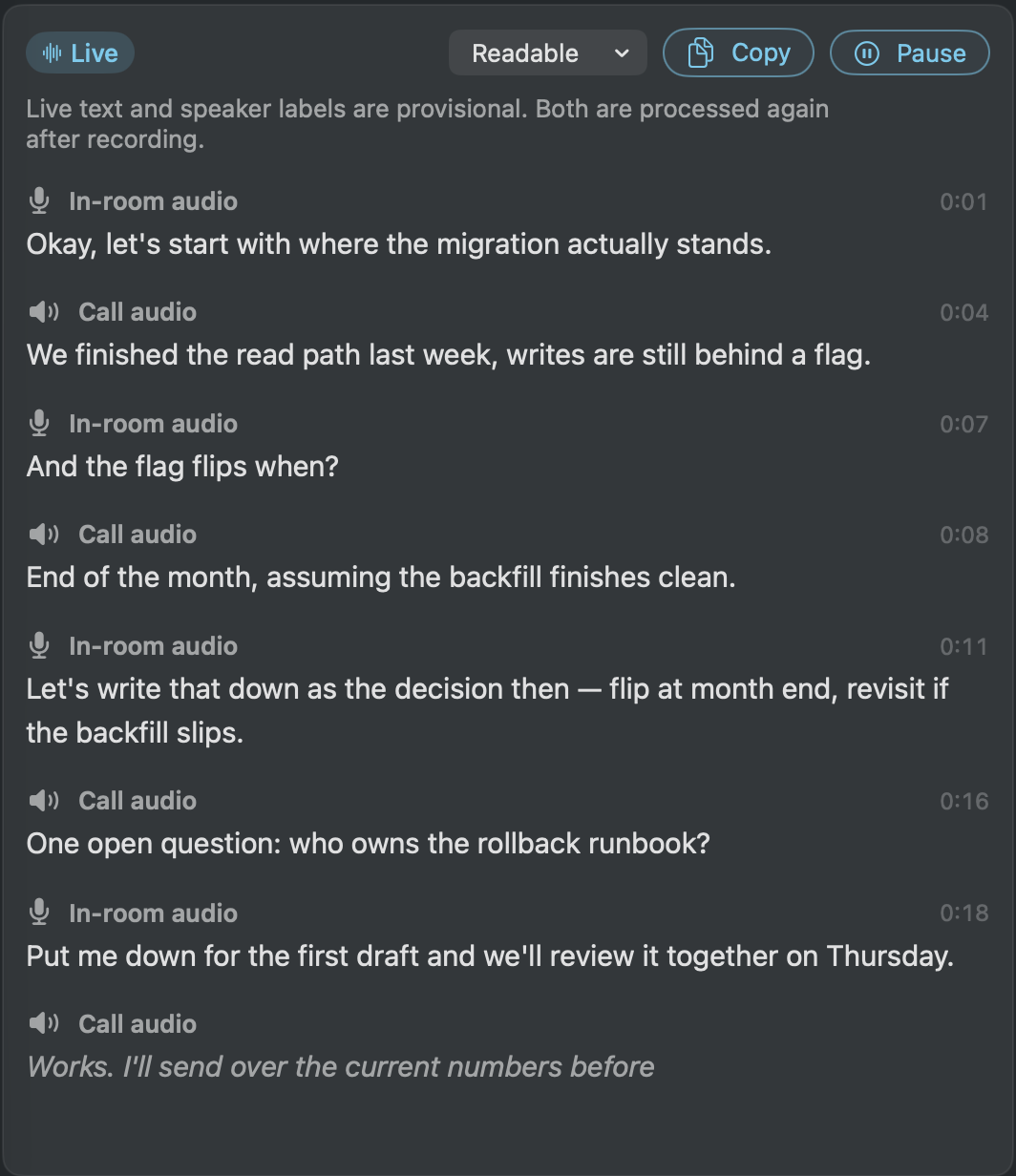
Follow the live transcript while you listen. Switch between Live and Readable text, watch your microphone and the call audio separately, pause the scrolling, or ask the meeting helper for context.

Live text is provisional. Transcription speed and availability depend on your Mac and setup.

See the whole workspace
A readable detail of Brain’s actual Mac live transcript, with in-room and call audio labels and timestamps.
Live transcript view · sample content

Windows: The conversation,
in front of you.

Follow the live transcript while you listen. Watch your microphone and the call audio separately, pause the scrolling, or ask the meeting assistant for context.

Live text is provisional. Transcription speed and availability depend on your computer and setup.

See the whole workspace
A readable detail of Brain’s actual live transcript, with its speaker labels and timestamps.
Live transcript view · sample content

Mac: Who said what,
with context.

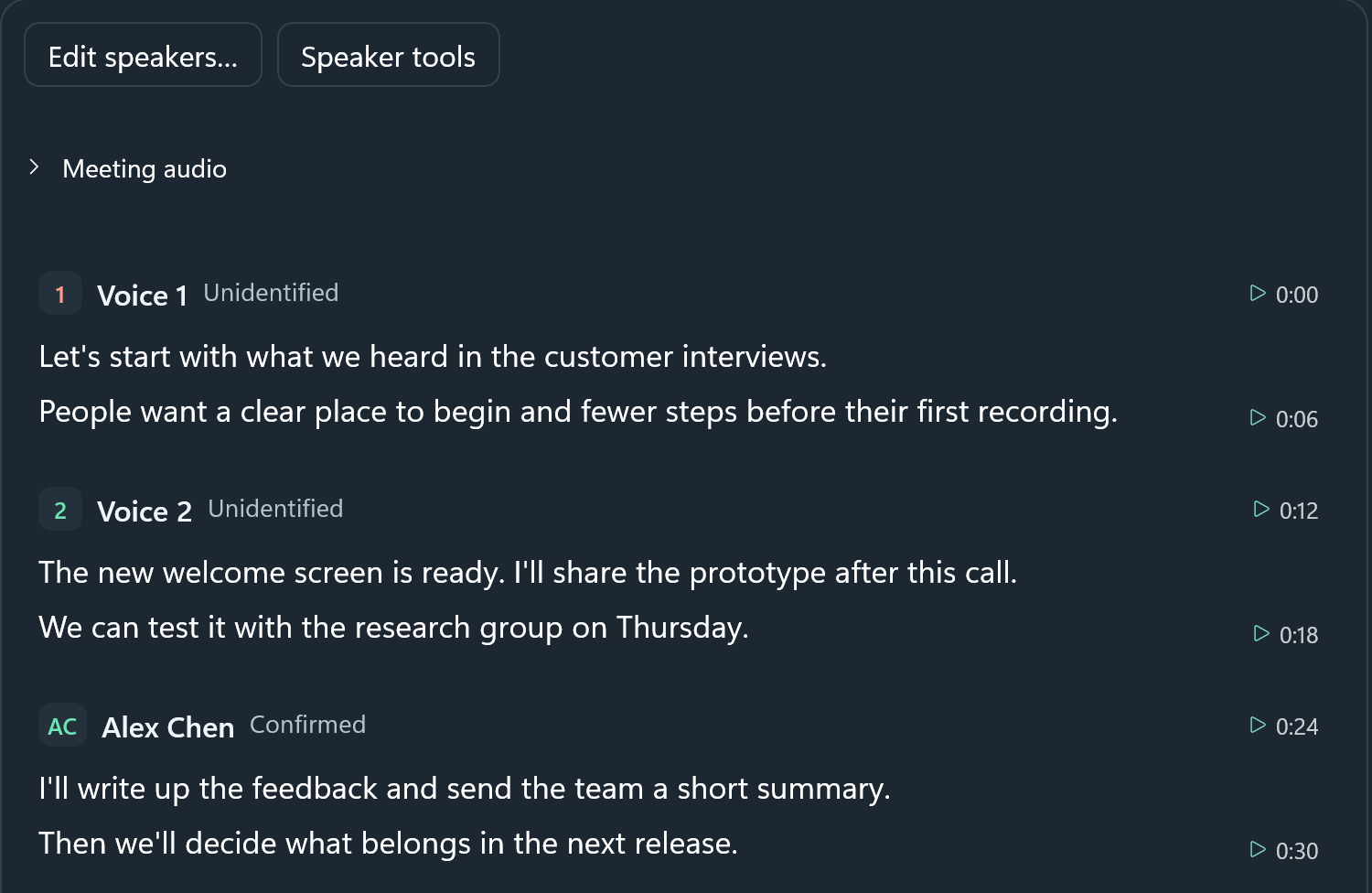
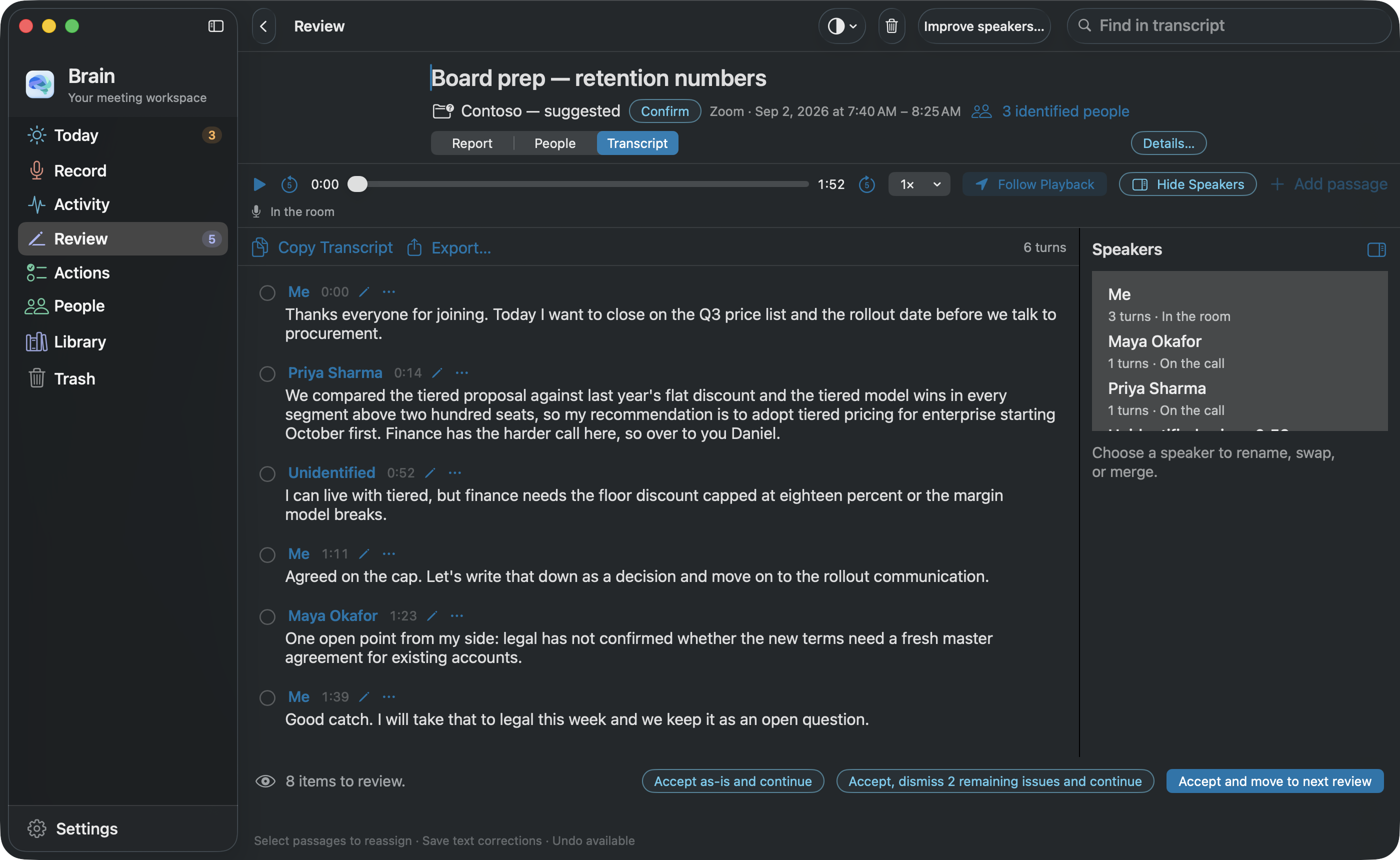
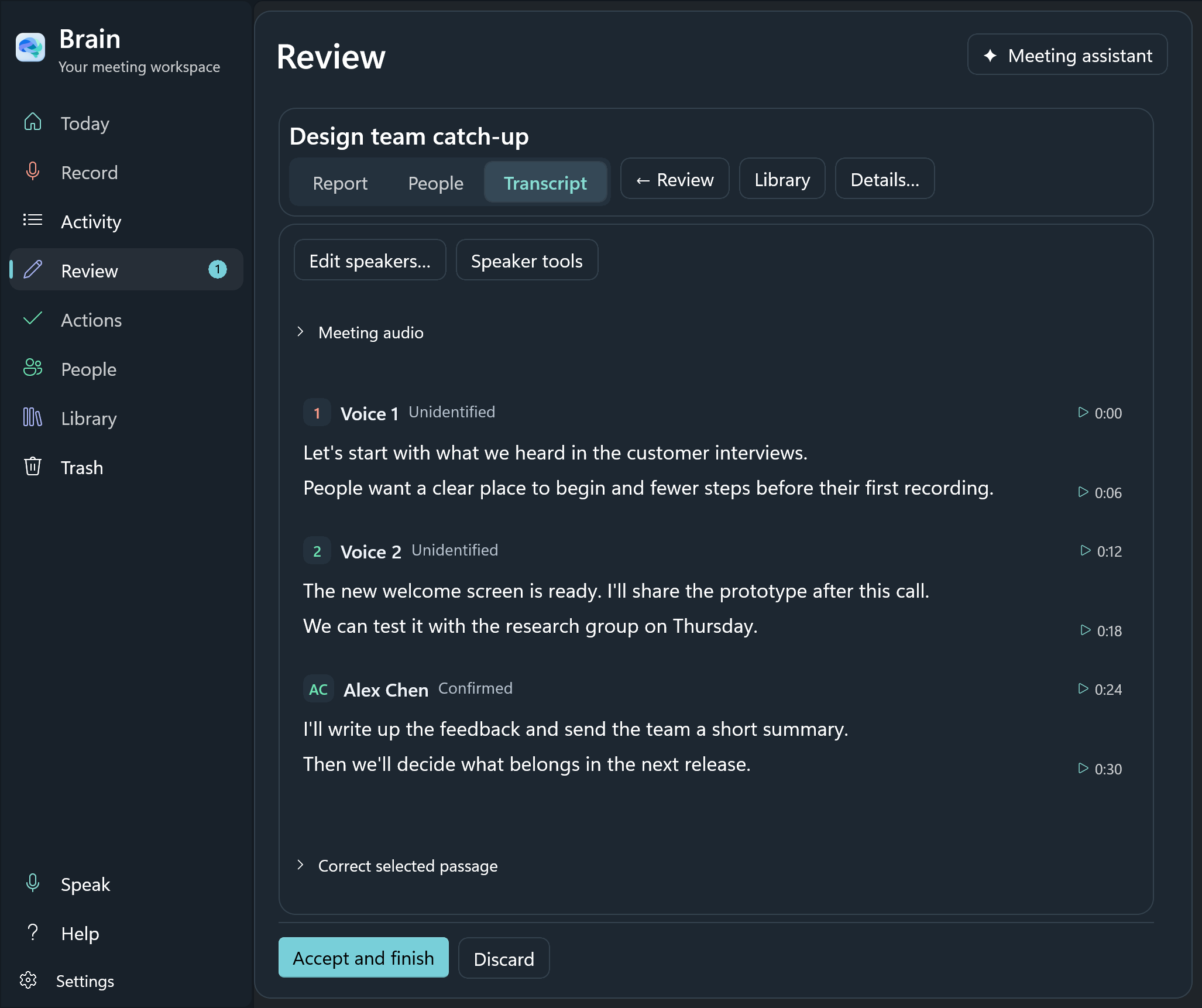
Read the saved transcript by speaker, play any passage, and rename, swap, or merge a voice in place. Unidentified voices stay separate until you decide.

A voice match is different from a confirmed identity. Check names and correct them when needed.

How Brain remembers voices
Brain’s saved Mac transcript with named speakers, an unidentified voice, and timestamps.
Speaker review in Brain for Mac · sample conversation

Windows: Who said what,
with context.

Follow distinct speaker turns, replay a passage, and correct a name in place. Unidentified voices stay separate while you review who said what.

A voice match is different from a confirmed identity. Check names and correct them when needed.

How Brain remembers voices
Brain’s saved Windows transcript with distinct voice labels, speaker turns, and passage playback controls.
Speaker review in Brain for Windows · sample conversation
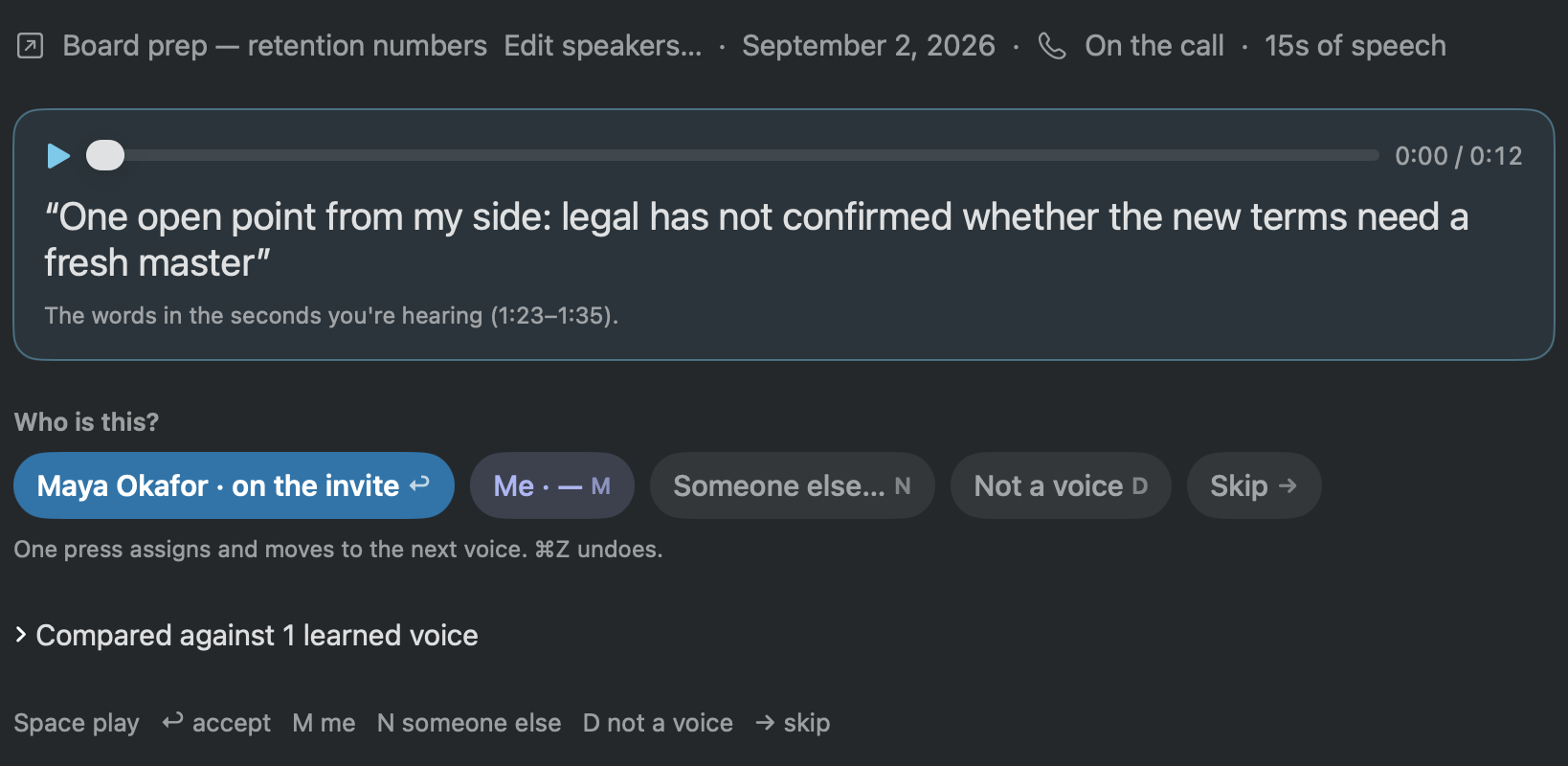
Voice review in Brain for Mac: the sample player, the quoted words, and the Maya Okafor, Me, Someone else, Not a voice, and Skip choices.
Voice review in Brain for Mac · sample content
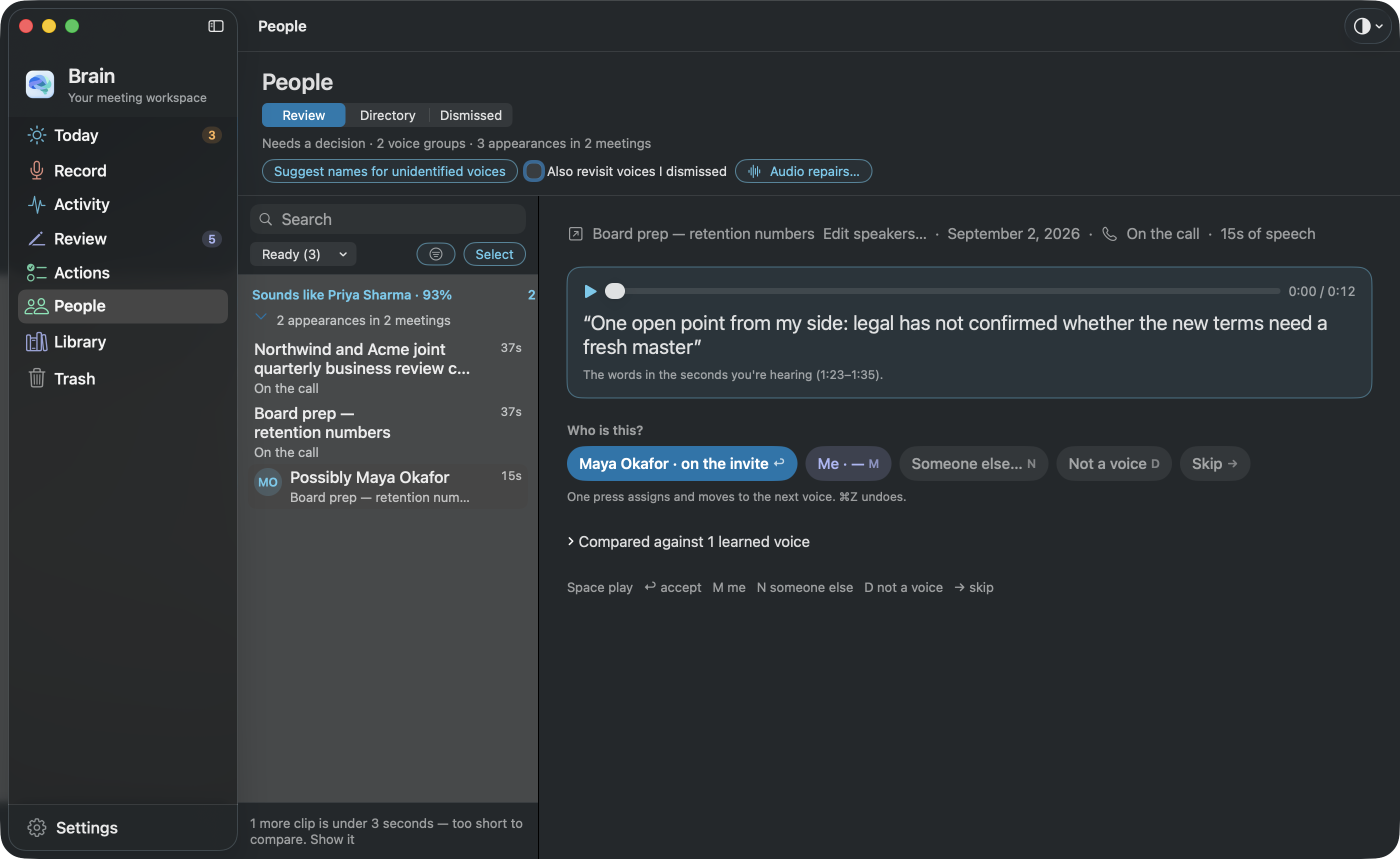
The whole Mac People screen around the voice-review panel.
View the whole People screen
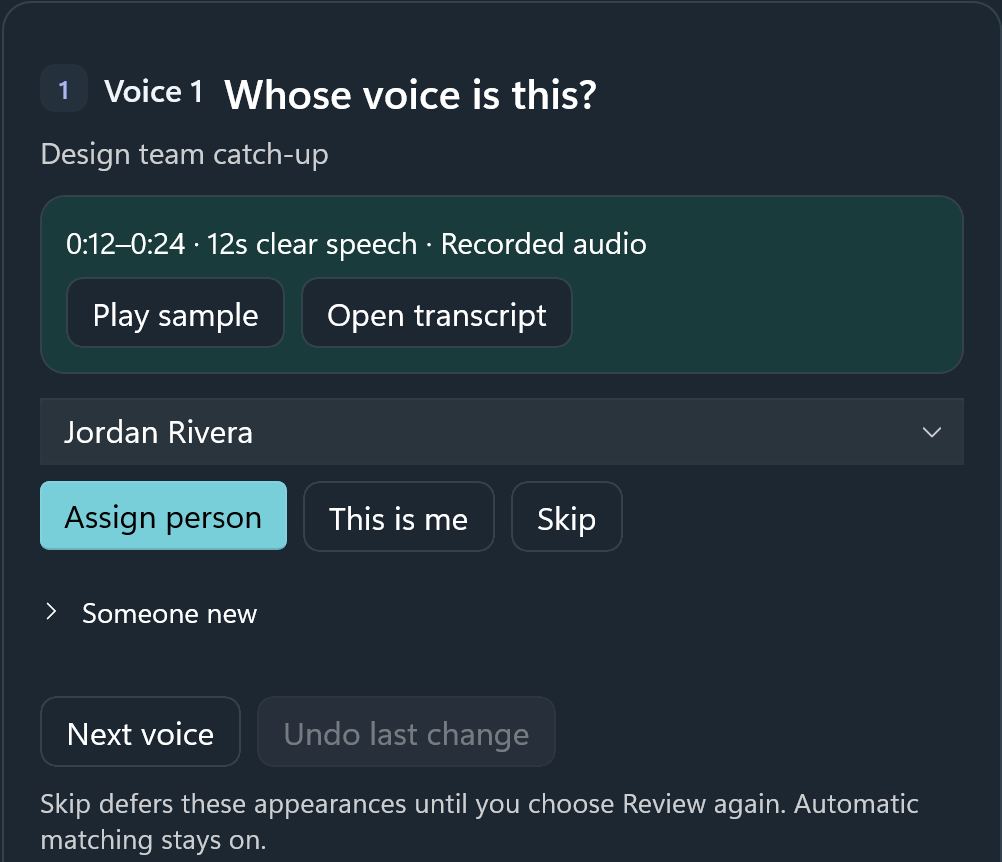
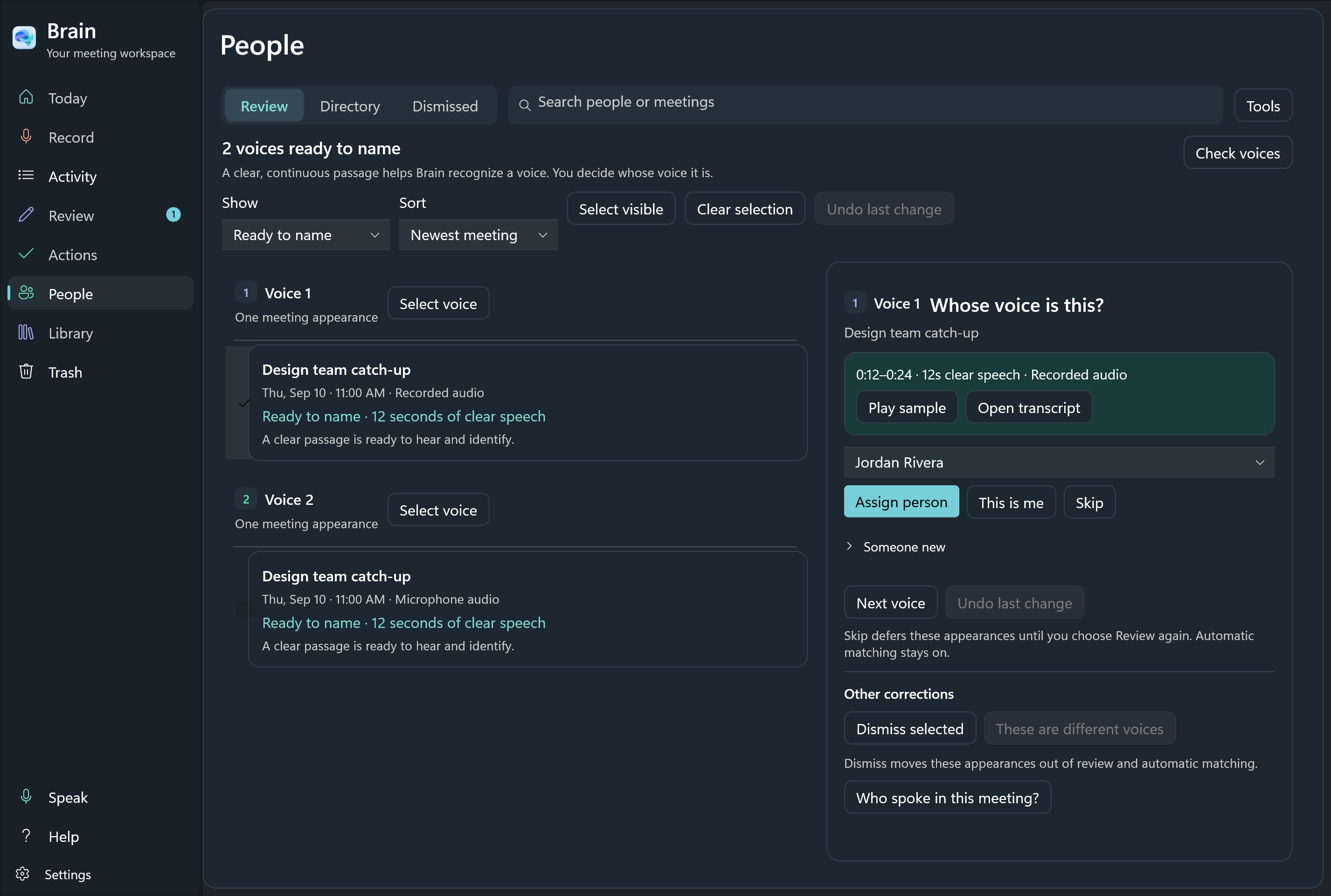
Voice review in Brain for Windows, showing the sample it checked, with Assign person, This is me, and Skip.
Voice review in Brain for Windows · sample content
The whole Windows People screen around the voice-review panel.
View the whole People screen

Remember the people.
Not just the words.

Listen to a clear passage. Confirm who it belongs to with one press: the suggested name, Me, someone else, or Skip. Saved voices help Brain recognize people in later conversations.

Build on the voices you have already confirmed, meeting after meeting.

Voice matches still need your judgment. Uncertain or new voices may remain unnamed.

Mac: See voice review up close Windows: See voice review up close

Good conversations
deserve a next step.

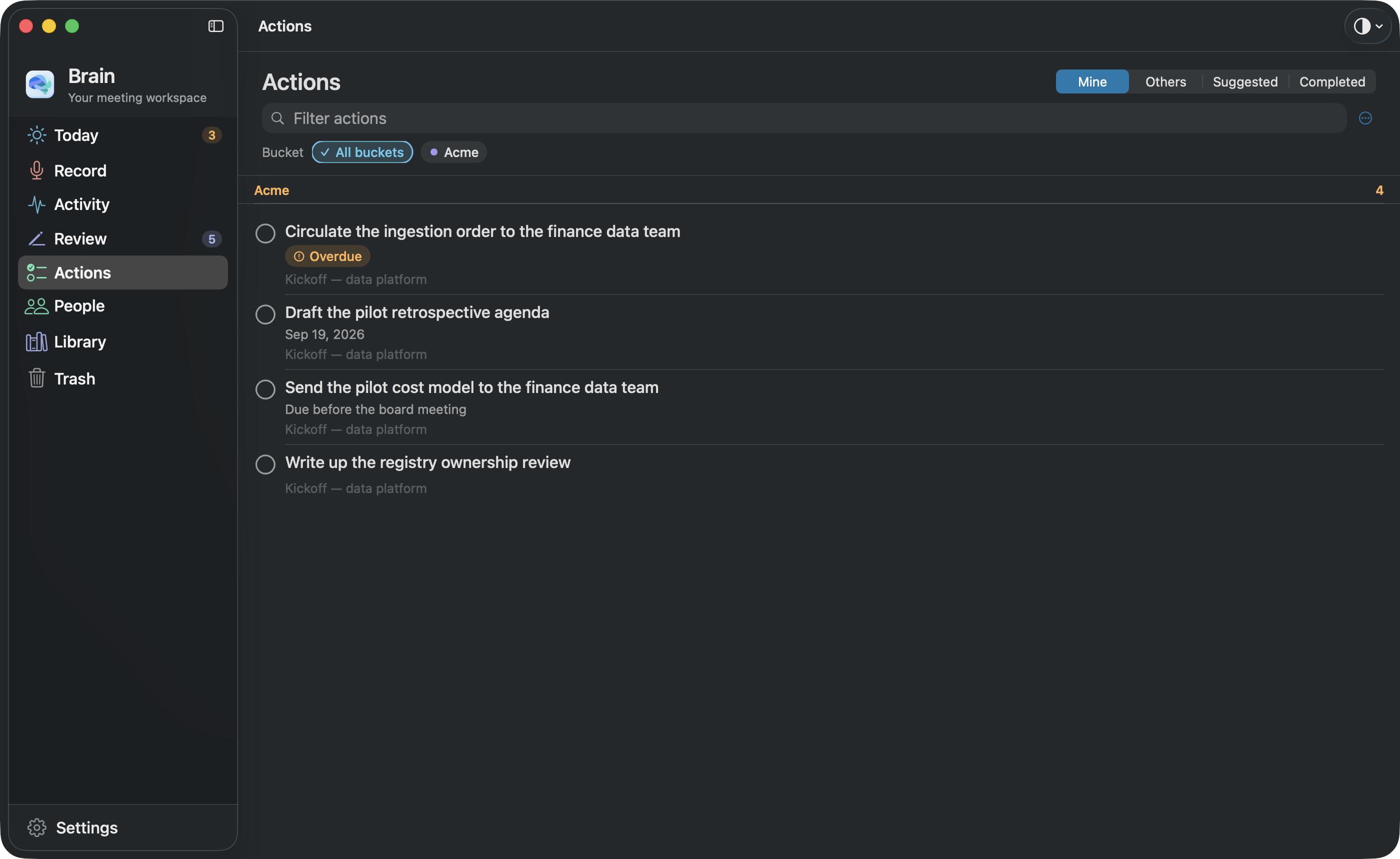
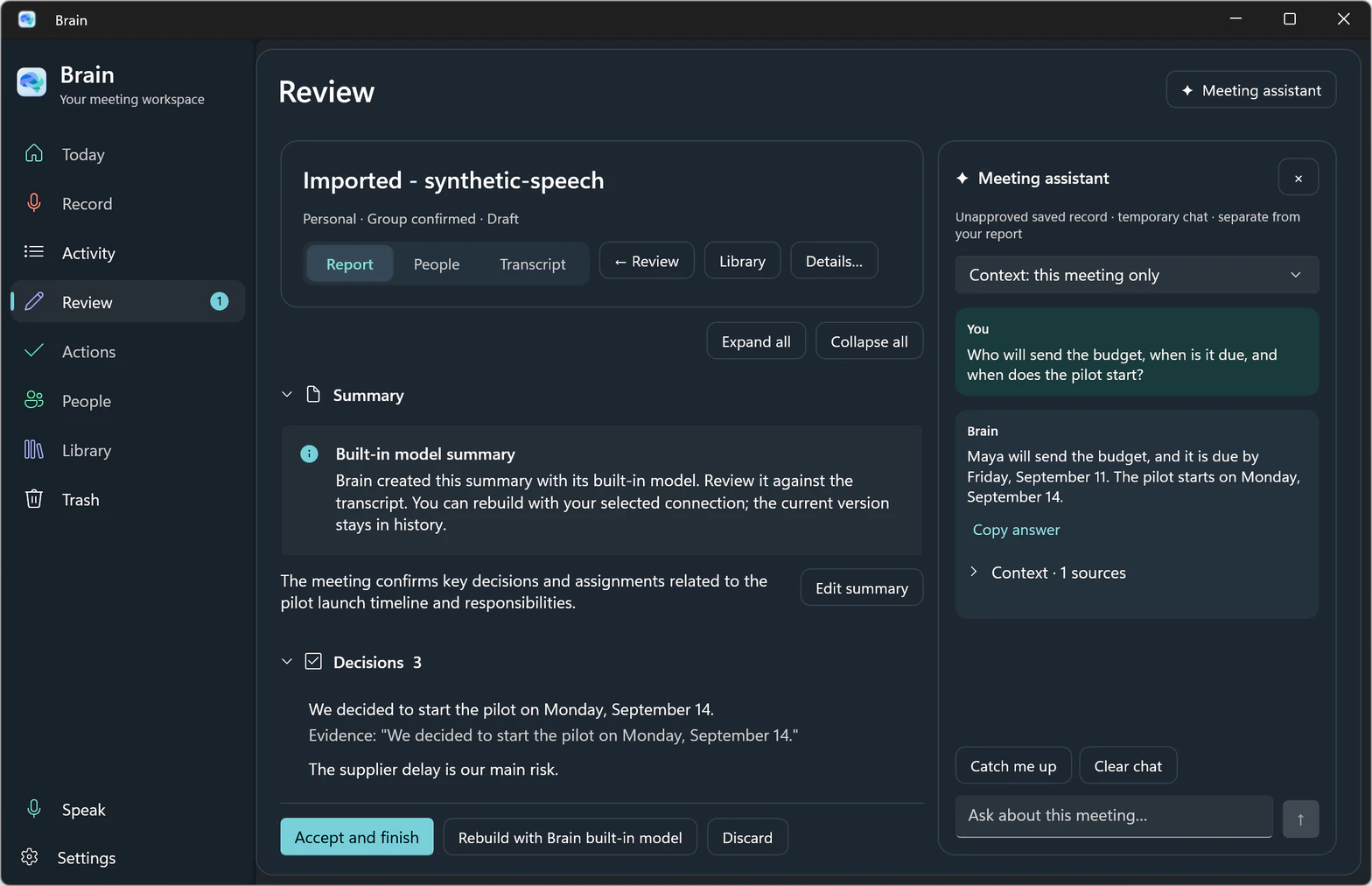
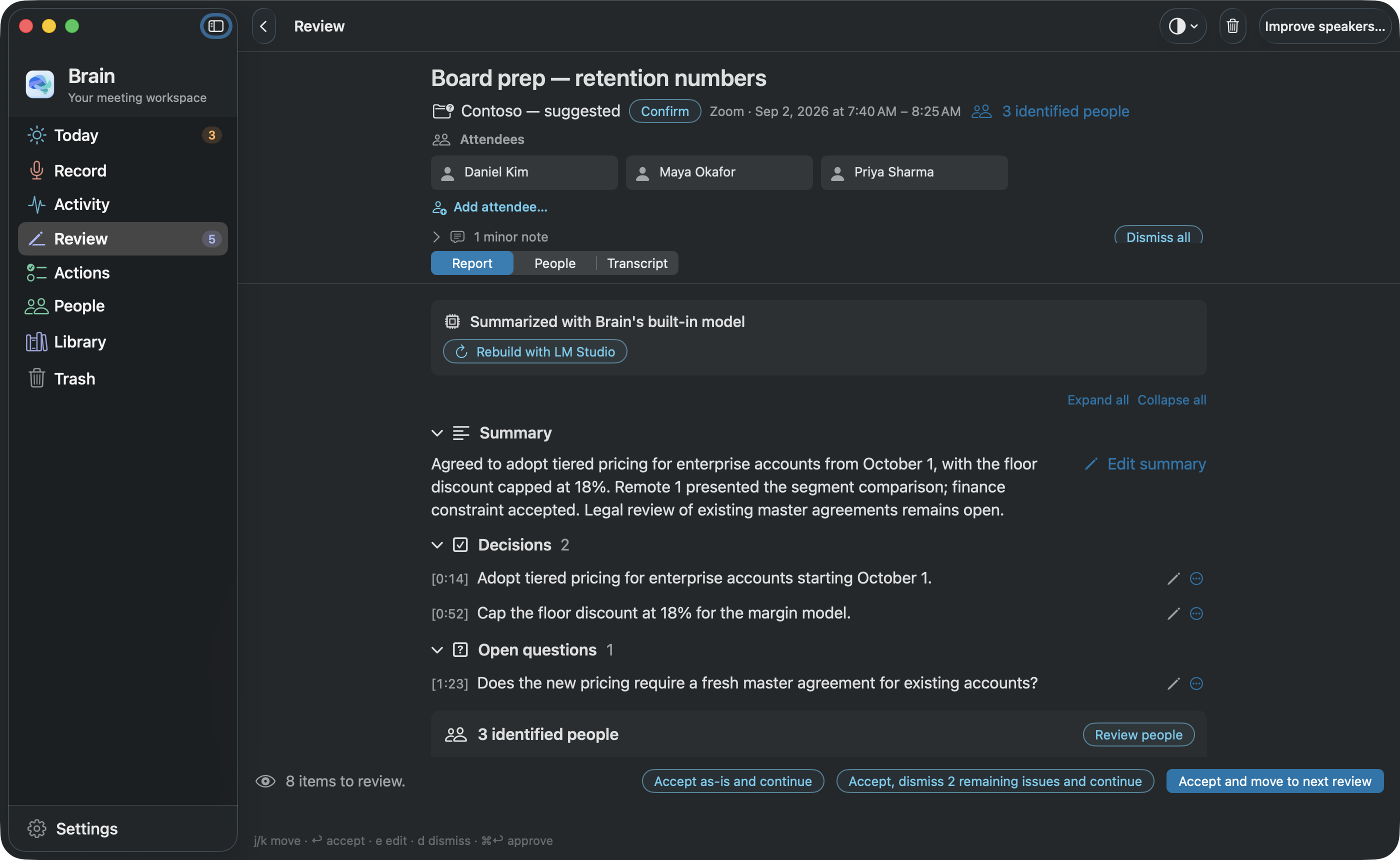
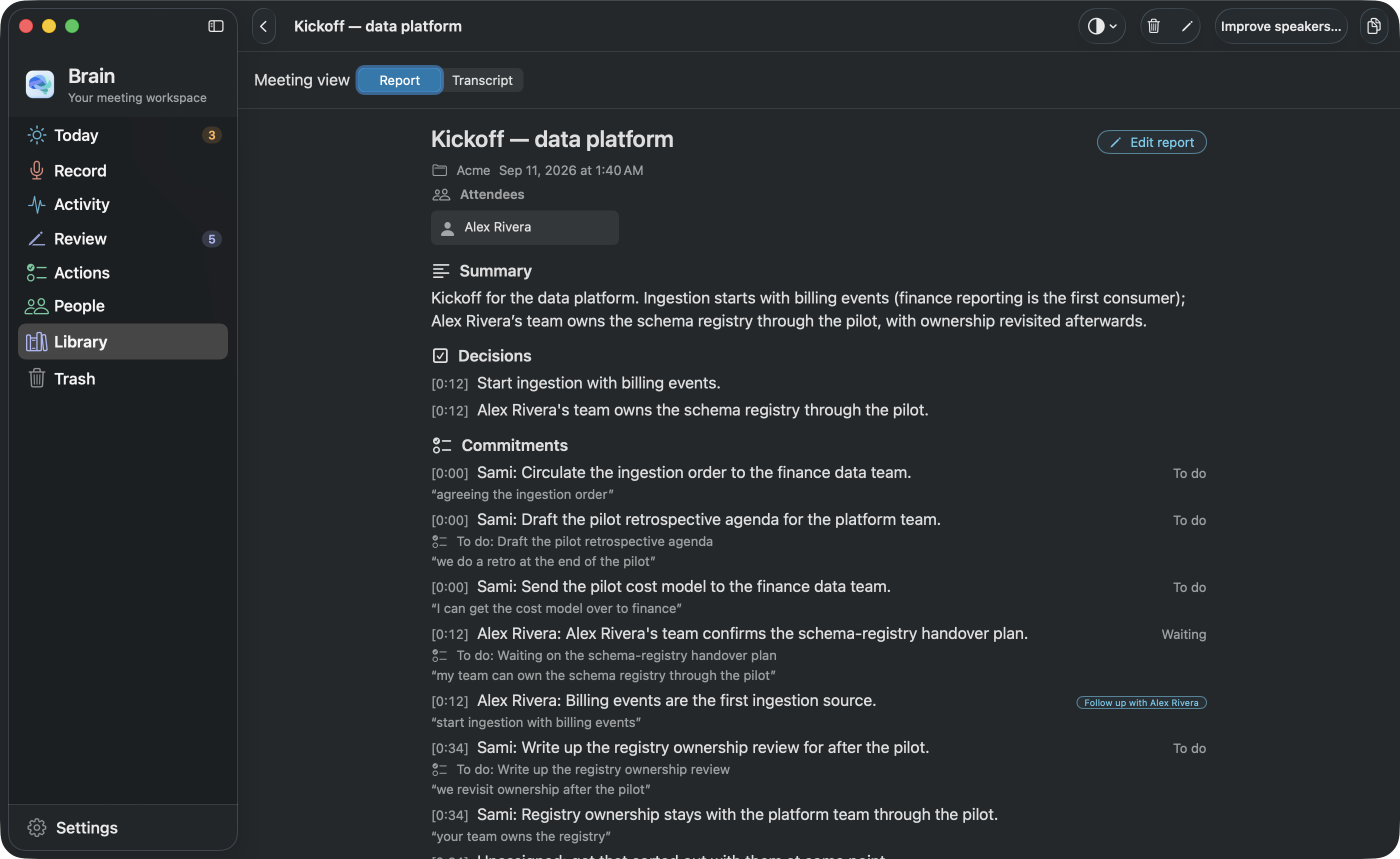
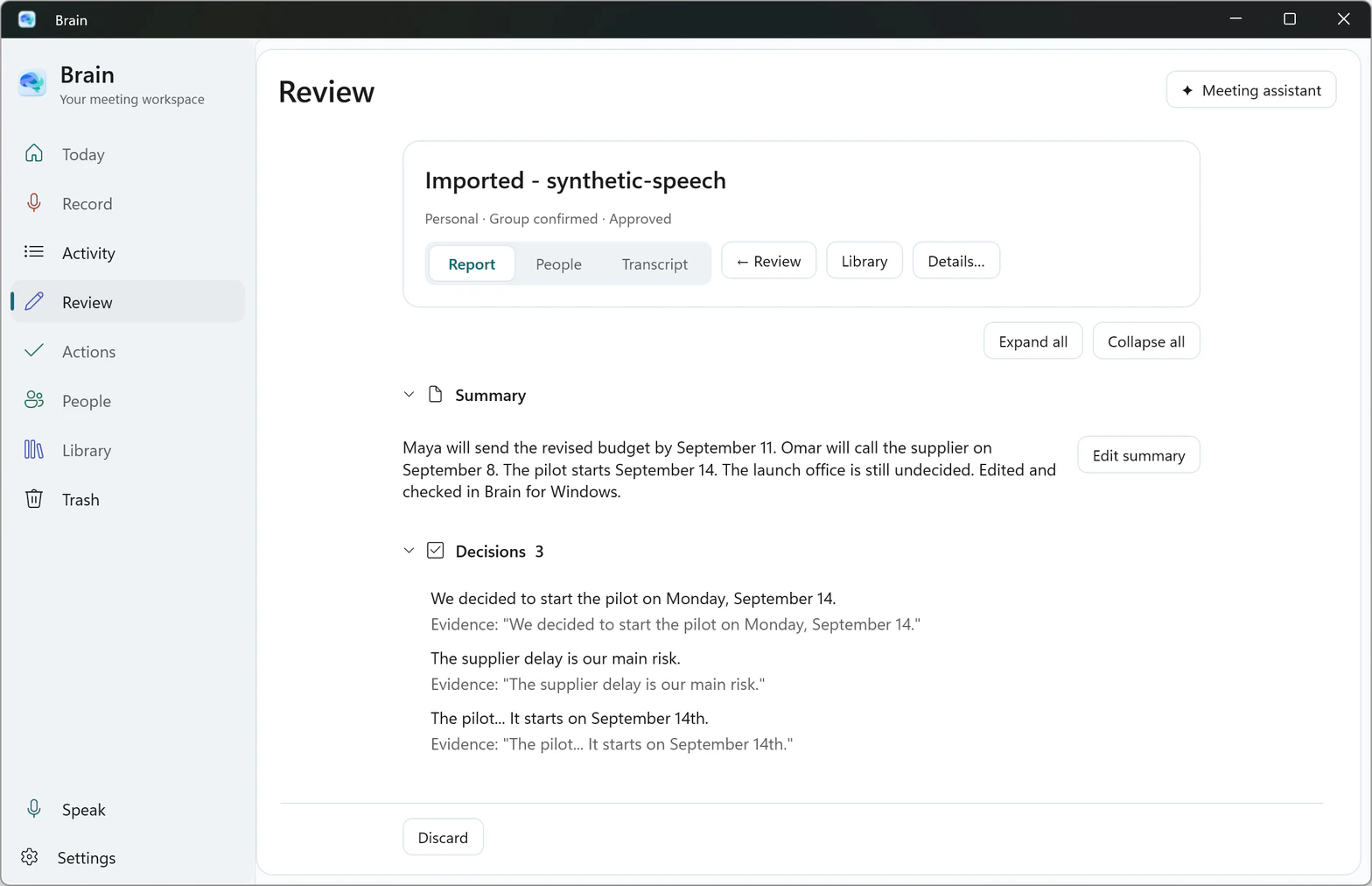
Read a meeting’s summary, keep the decisions you agree with, and find every next step in one to-do list. Ask a question, check its source, and keep the next steps you agree with. Keep the conversation useful long after the call.

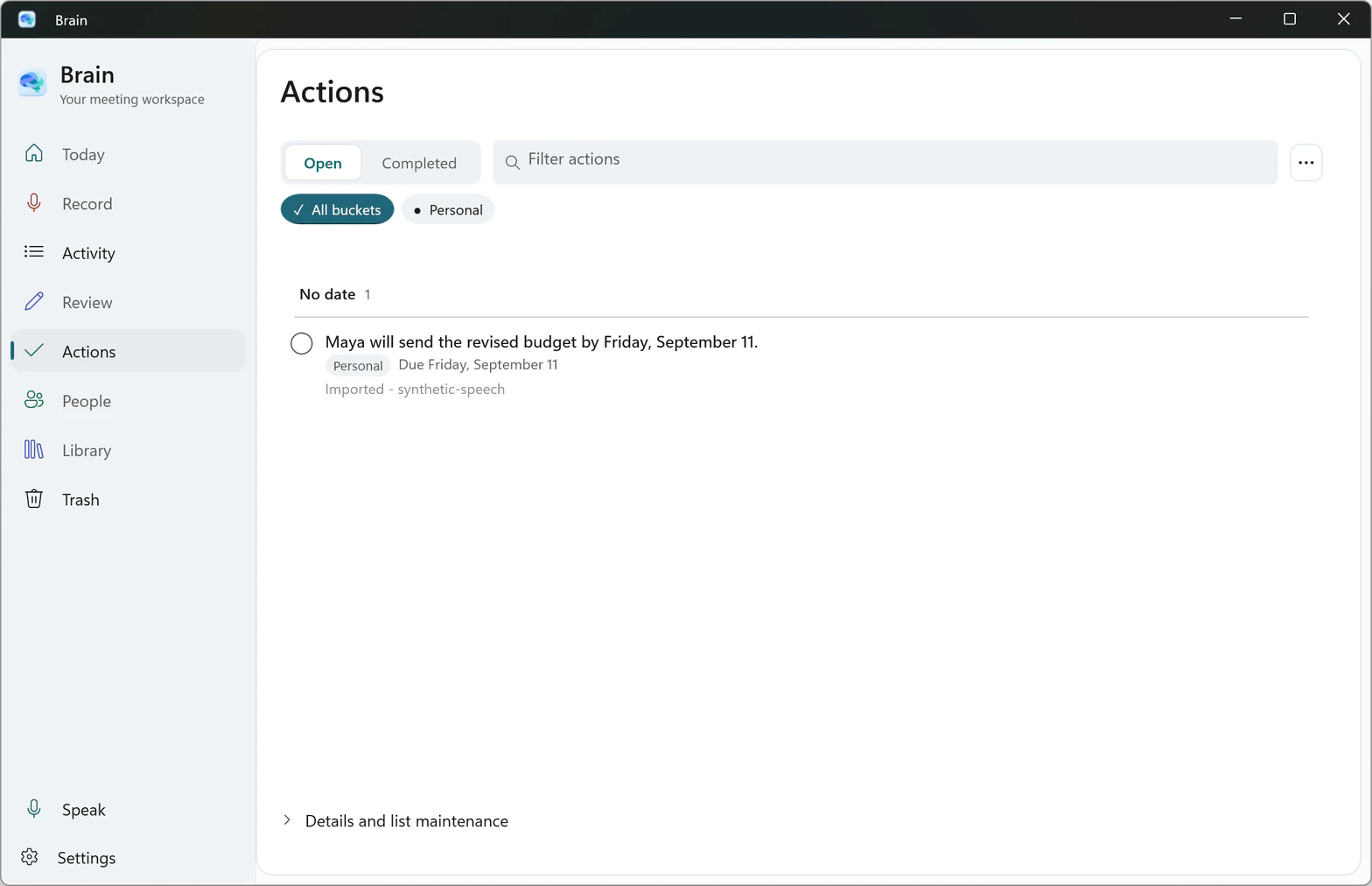
The actual Mac Actions list: the to-dos filed from a sample meeting, with a due date and an overdue item.
Actual Mac app · sample meeting View full size
The actual Windows review screen with a sample meeting summary, decisions, and the meeting assistant’s answer.
Actual Windows app · sample meeting, answered on the PC View full size

A thought.
A shortcut.
Your words.

Brain Speak turns your voice into text in the app you’re already using. Hold your shortcut, speak, and release; Brain types the words where your cursor is and keeps a history you can paste again. Choose your shortcut and activation mode, then keep your recent dictations close.

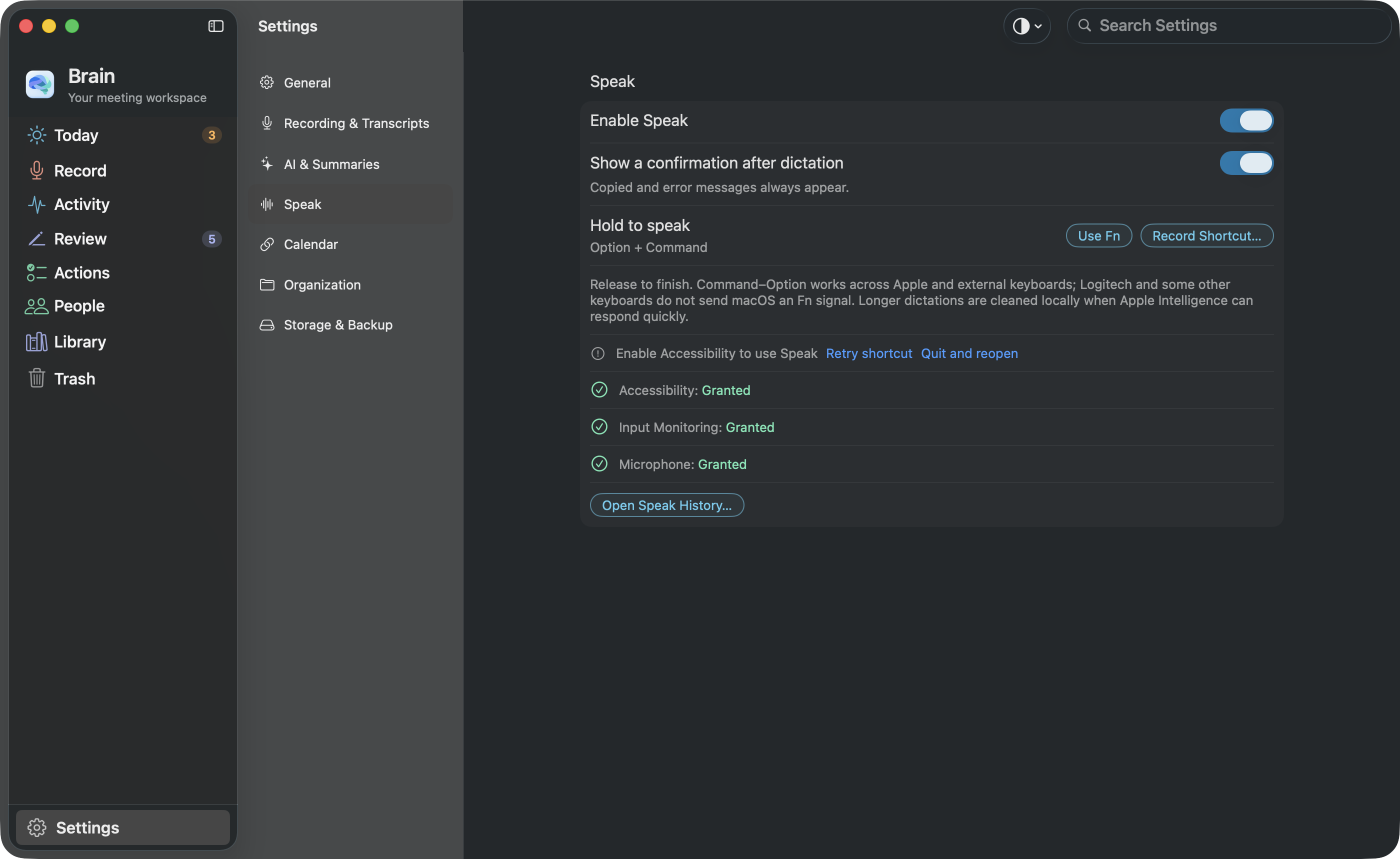
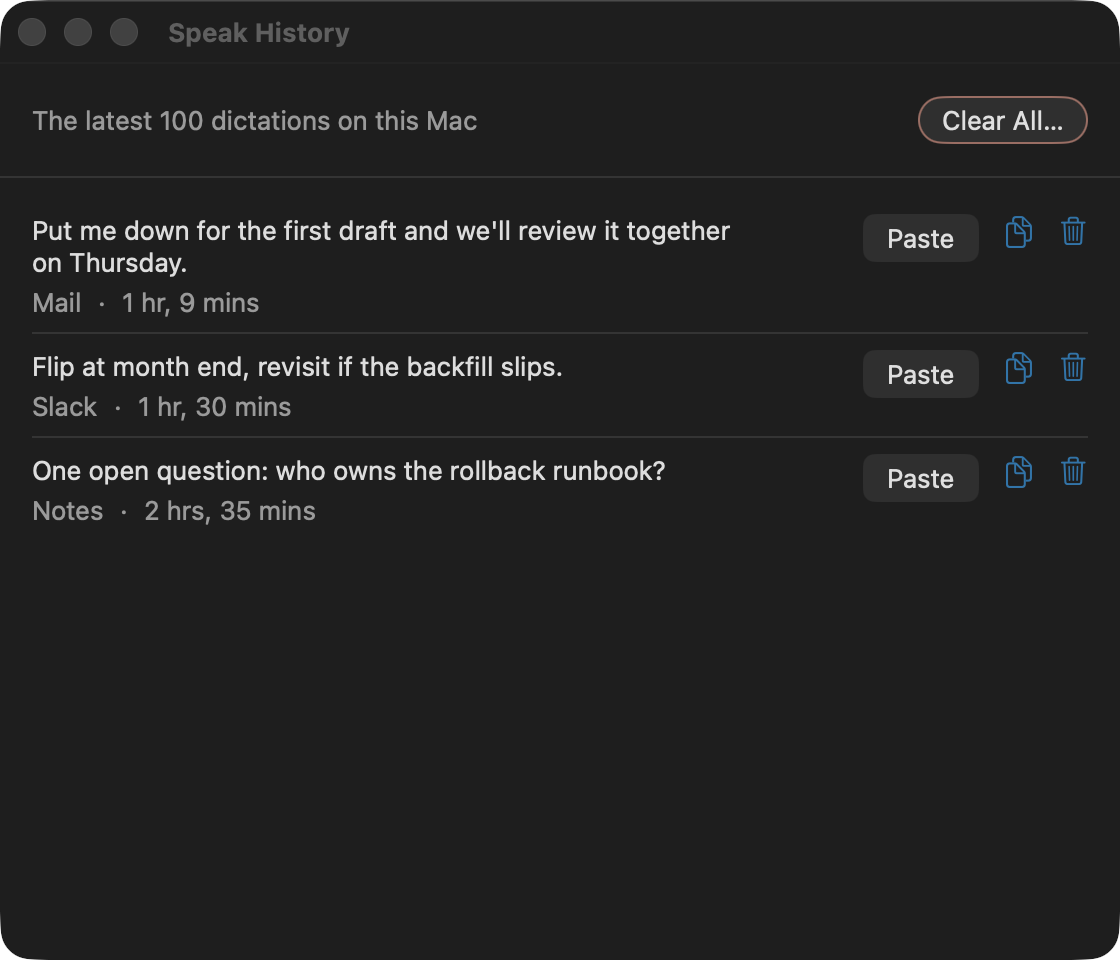
These Mac screens show Settings › Speak, the Speak History panel, and the floating Speak bar while it listens. Speak needs microphone and Accessibility permission. The dictations shown are sample content, and the leftover “Enable Accessibility to use Speak” warning is a quirk of the test copy used for the screenshot (about these screenshots).

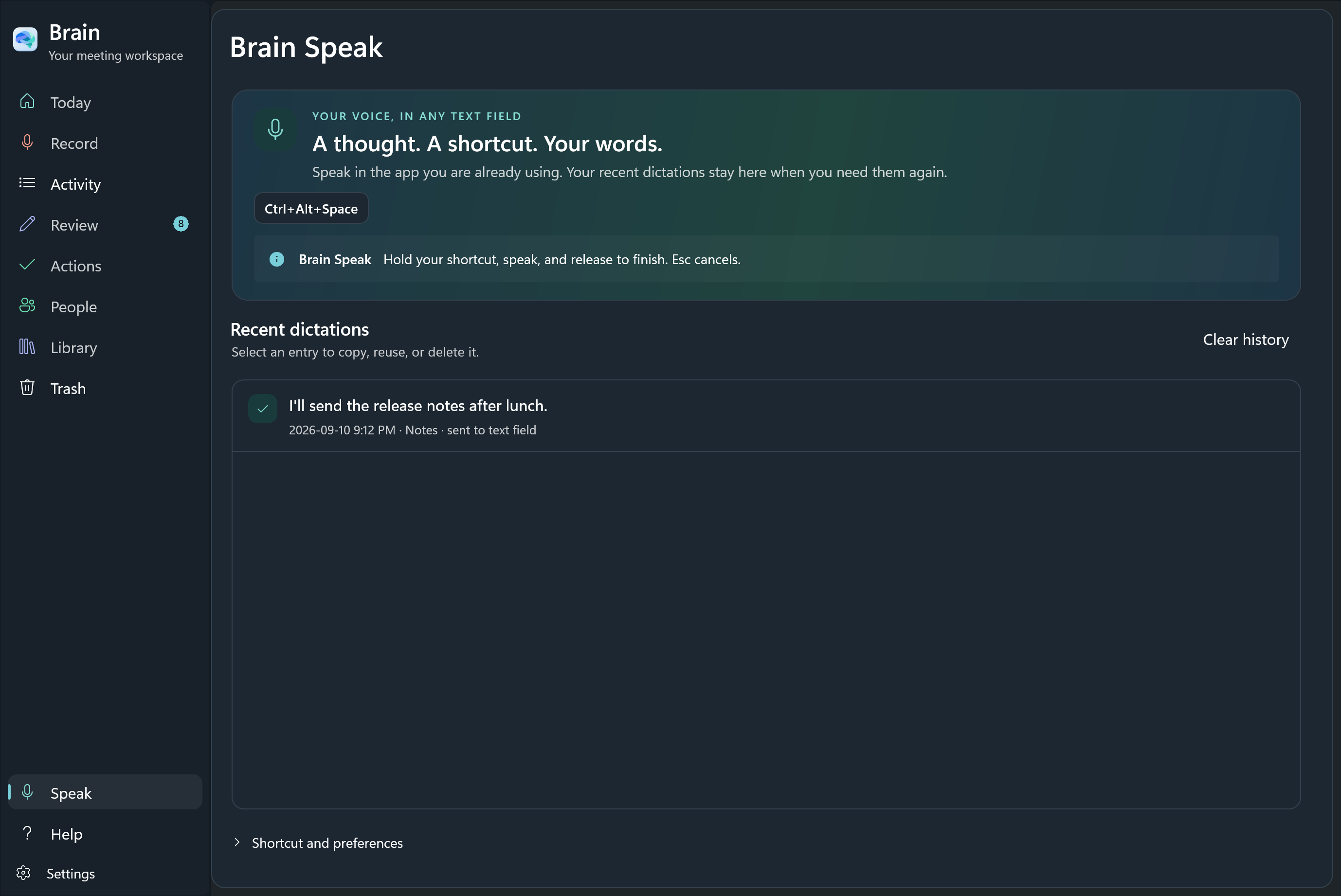
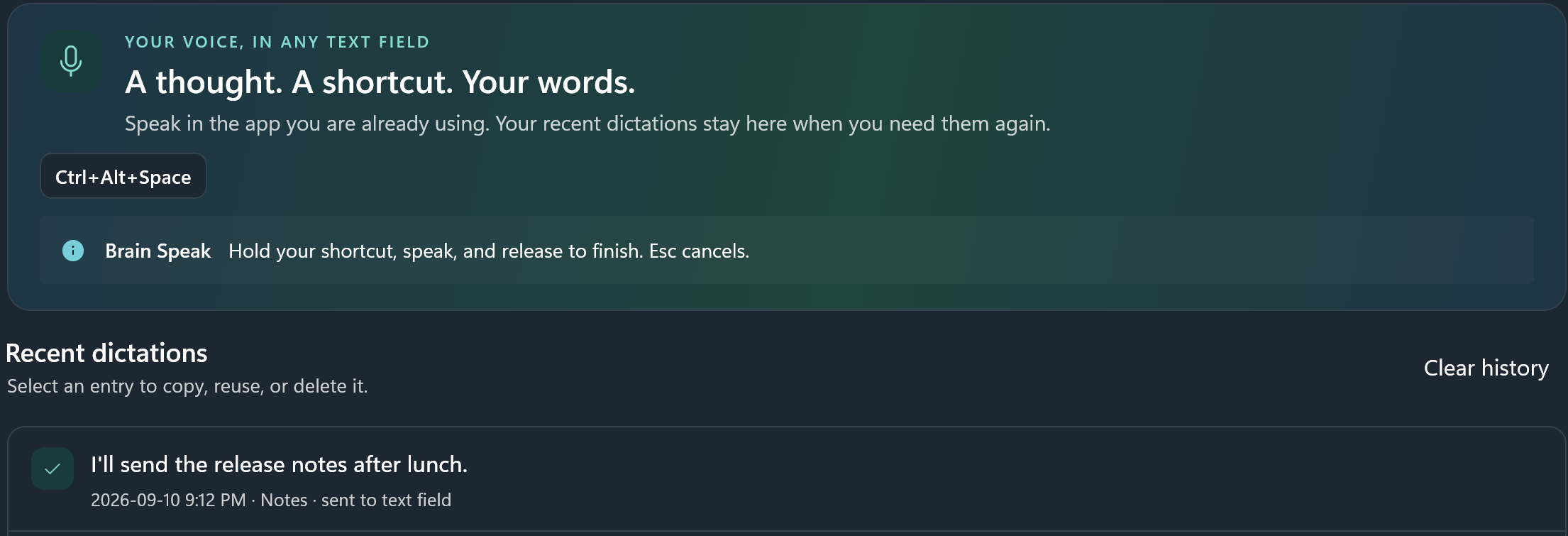
These Windows screens show the shortcut, the dictation history, and the recovery controls. Typing into other apps is still being checked in the preview.

Mac: See Brain Speak up close Windows: See Brain Speak up close
The actual Mac Settings › Speak screen, with the Enable Speak switch, the confirmation option, the Hold to speak shortcut, and its permissions.
Brain Speak for Mac · Settings › Speak
Brain Speak’s floating bar on the Mac, listening.The real floating Speak bar.
View history detail
The actual Windows Brain Speak screen, with its shortcut, recent dictations, and preferences.
Brain Speak for Windows · shortcut, history, and preferences
Brain Speak’s floating bar on Windows, listening.The real floating Speak bar.
View history detail

Works with your tools.
On your computer.

Brain’s command-line tool brings approved meetings, transcripts, and decisions into the tools you use. Any agent or app on your computer that can run terminal commands can work with Brain.

Or connect a tool that speaks MCP (the Model Context Protocol) straight to Brain’s own server on your computer.

Connect your tools
Brain on your MacRuns on your computer · one scope at a time

Search approved meeting context

brain search "release decision" --scope Personal --json

Connect an MCP client

brain mcp --scope Personal --print-config claude
These are the real commands. Replace Personal with one of your own scopes.
Find the command on your Mac
Brain on WindowsRuns on your computer · one scope at a time

Search approved meeting context

.\brain.cmd search "release decision" --scope Personal --json

Connect an MCP client

.\brain.cmd mcp --scope Personal --print-config claude
These are the real commands, run from the portable Brain folder. Replace Personal with one of your own scopes.
Find the command on your PC

Brain shares only the meetings you have approved, in the scope you pick. Whether that text leaves your computer depends on which AI model your own tool is set to use.

On your computer.
On your terms.

Your recordings and notes stay in your own account on your computer. Speech, summaries, and questions can all run on your computer once the tools have downloaded.

You choose whether to connect an online service. Connected services and agents may receive the text you share with them.

How Brain handles your information

Be present.
Bring Brain.

Your next conversation is a good place to start. Try a small practice meeting.

Get Brain

The Mac and Windows screens above are screenshots of the real app, filled with sample content. This page moves and zooms those screenshots; it is not a live demo of a meeting. About these screenshots