
Brain for Mac.
Ready to try.
Record your Zoom and Microsoft Teams calls, read the transcript as it happens, and keep the decisions and next steps. Everything stays on your Mac.
Version 0.2.84 · 95 MB
macOS 26 (Tahoe) or later · Apple silicon Mac
Needs about 10 GB free to set up · the built-in summary model works best with 32 GB of memory or more
Install Brain
- Download Brain using the button above and open the disk image.
- Drag Brain into your Applications folder. Eject the Brain disk image, then open Brain from Applications.
- Apple has checked Brain (it is signed and notarized), so macOS opens it without a security warning. If you are asked to confirm, choose Open.
Already have Brain?
Open the new download and click Replace the older Brain. When asked, quit the older Brain from the menu bar, and the new one carries on by itself. Your meetings and settings stay. If setup got stuck on an older version, this is the fix: download the new version and open it.
The first time you record, macOS asks for permission to use your microphone and, for calls, to record system audio so Brain can hear the other people on the call. Brain also downloads the speech-recognition files it runs on your Mac the first time you need them; keep your internet connection available until that finishes.
Brain needs macOS 26 or later on an Apple silicon Mac. It does not run on Intel Macs or older versions of macOS.
Brain needs about 10 GB of free disk space to set up. Its built-in summary model works best with 32 GB of memory or more.
To check your Mac, choose Apple menu › About This Mac, which shows your memory. For free space, click More Info there and go to Storage, or open System Settings › General › Storage.
Want to check the download?
The disk image is signed and notarized by Apple, which is the check that matters. If you also want to compare the file yourself, its SHA-256 checksum (a fingerprint of the file) is:
58cb8770f62dc53788a88fd225d520ff41b9c3278c86082ed0cf3ee28cb1728f
Start with a short recording
- Open Brain, choose Record, and make a short practice recording of yourself.
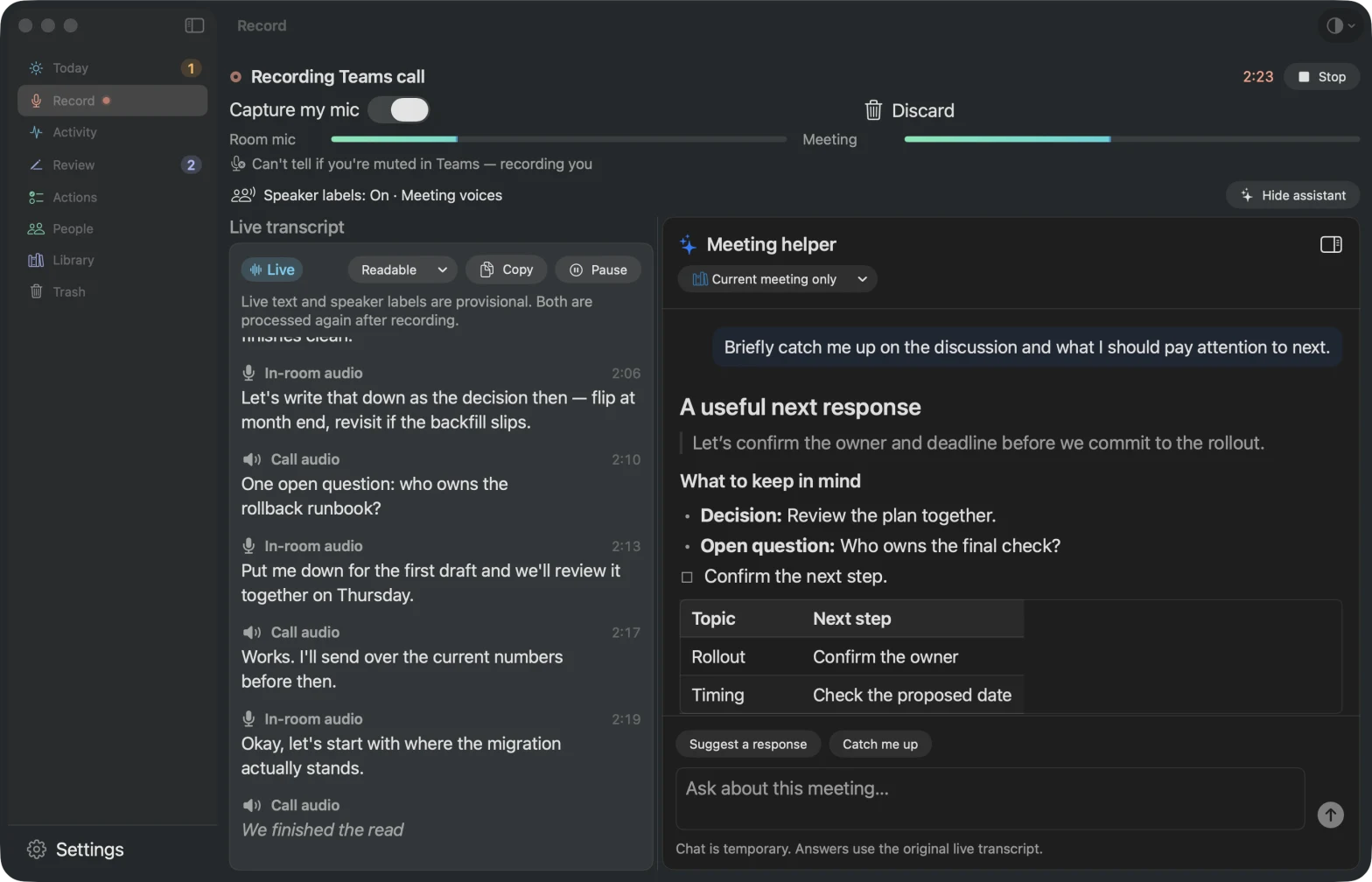
- Join a Zoom or Teams call. Brain notices the call and offers to record it — accept, and the live transcript starts in the Record view, with your voice and the call audio kept separate.
- When the call ends, Brain writes the full transcript and a summary. Review the decisions and next steps, keep the ones you agree with, and find the meeting again later in your library.
Tell everyone before you record. Speech recognition can miss names and details, so check anything you plan to rely on or share.
What Brain does
- Records Zoom and Microsoft Teams calls automatically after you say yes, and any conversation on request.
- Shows a live transcript during the call, grouped into readable paragraphs, with a meeting helper you can ask while you are still talking.
- Writes a transcript that shows who said what, and an editable summary after the call, with decisions and next steps linked to what was said.
- Learns the voices of the people you meet with, so names appear on later transcripts.
- Keeps a searchable library of your meetings.
Your meetings stay on your Mac
Recordings, transcripts, and notes are stored in your user account on this Mac. Speech recognition and the meeting summary run on your Mac; nothing is uploaded unless you choose to connect an online AI service in Settings. If you do, that service may receive meeting text and your questions.
Brain is an early preview shared privately by Sami Shariff. Keep another copy of anything important, and keep recordings, meeting text, and account details out of public posts.
Updates
Turn on Daily update check in Settings for optional update reminders. You can also choose Brain › Check for Updates… (or the same button in Settings). Brain looks for a newer version, downloads it, checks its signature, and replaces itself in your Applications folder when you choose Install and Relaunch. Your meetings are kept.
Brain won’t install an update while a recording is running. If an update ever fails, Brain restores the version you had; you can also download the latest version from this page at any time.
If something goes wrong
Brain did not notice a call
Choose Record and start the recording yourself. Check that macOS has allowed Brain to use the microphone and to record system audio in System Settings › Privacy & Security.
The live transcript stopped
The recording keeps going and the full transcript is written when the call ends. Tell Sami which call it was and roughly when the text stopped.
Setup can’t download the models on a work network
If a VPN, proxy or firewall blocks the model download, setup says so. Try another network, or ask IT to allow downloads from the model site: huggingface.co and the servers it sends model files from, cdn-lfs.hf.co and cas-bridge.xethub.hf.co.