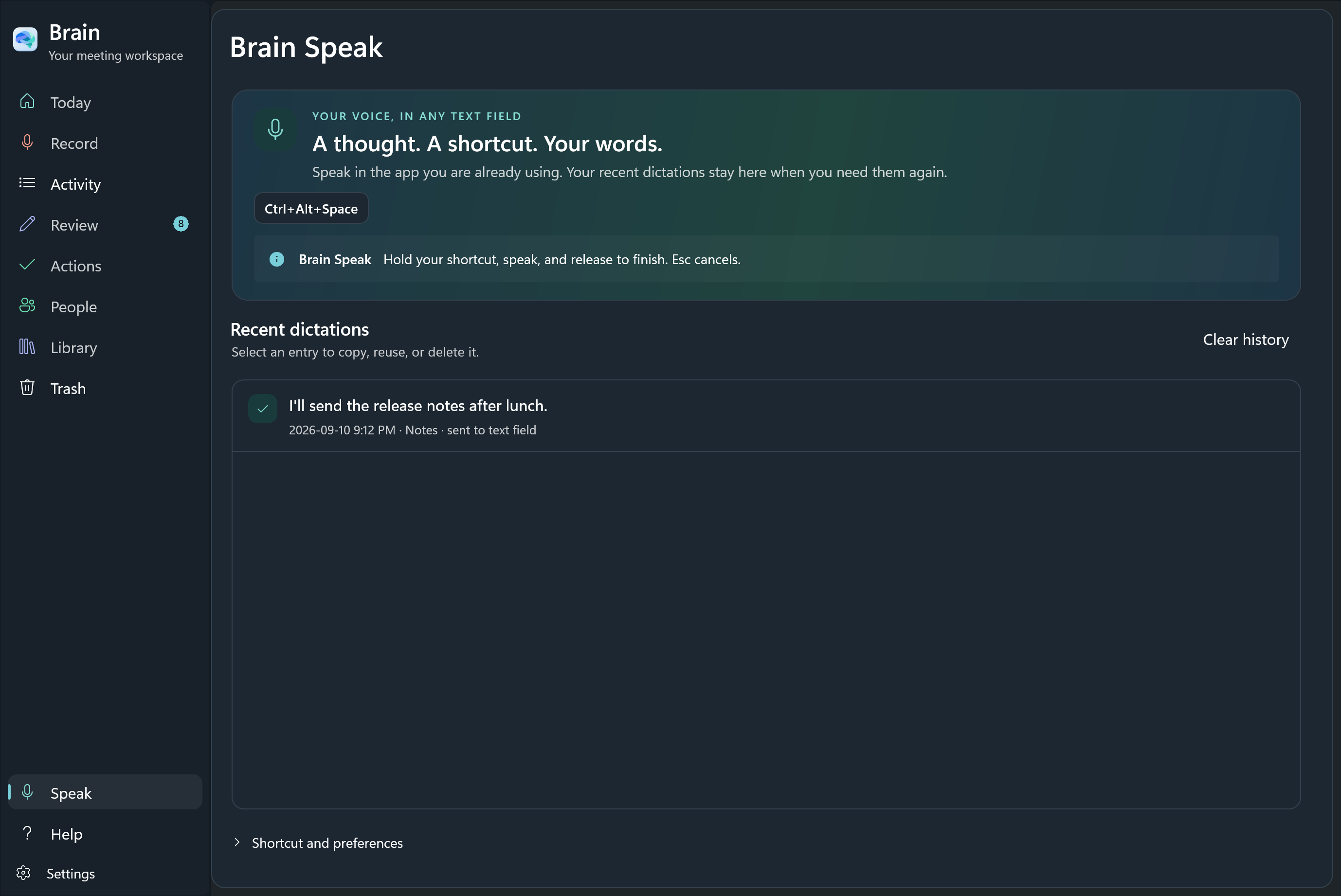
The real interface.
Sample content.
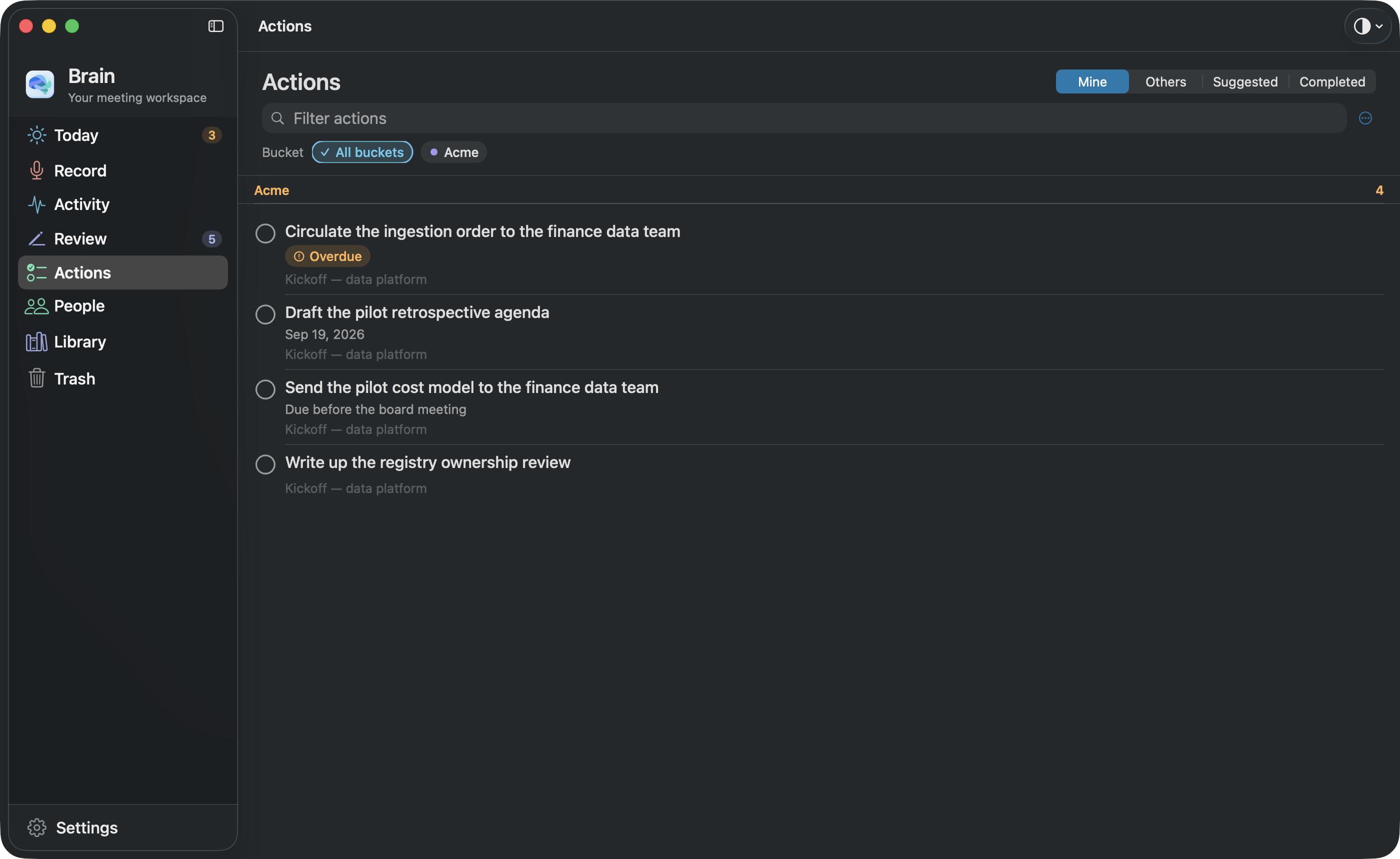
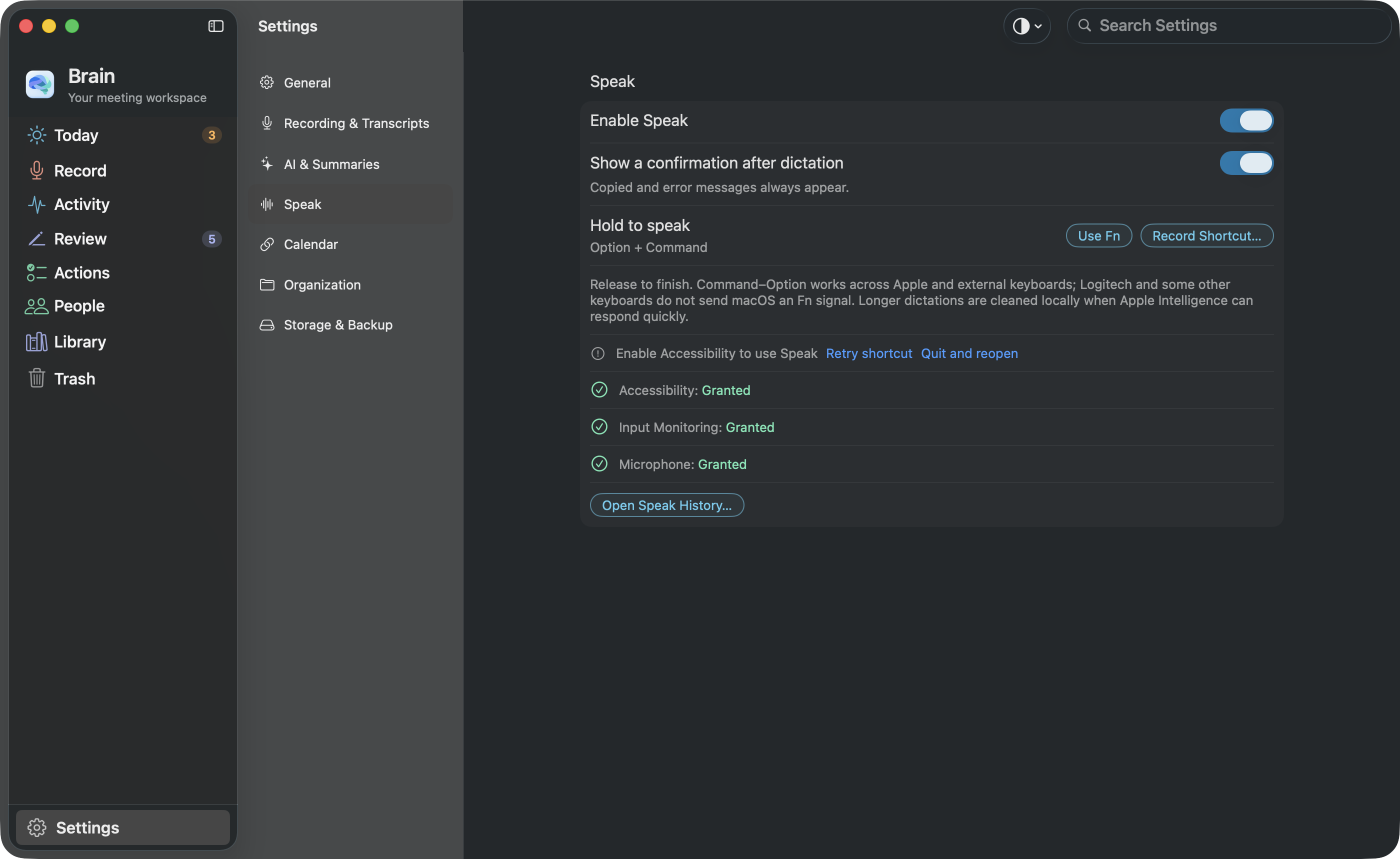
The Mac and Windows screens on the homepage are screenshots of Brain’s own Mac and Windows apps. They are not web mock-ups and not AI-generated pictures. Choose a platform on the homepage to see that platform’s captures; this page shows both.
How the Mac screenshots were taken
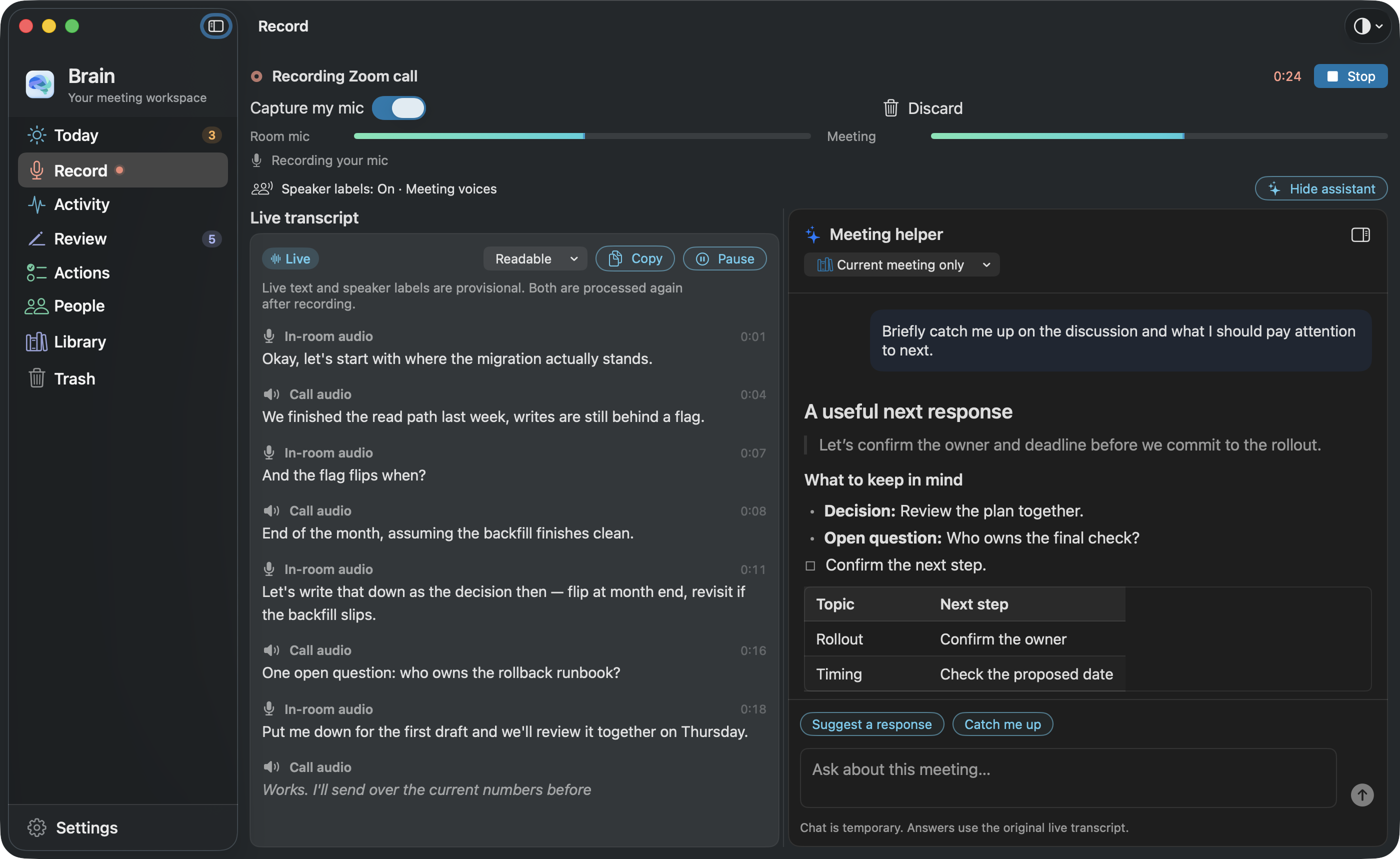
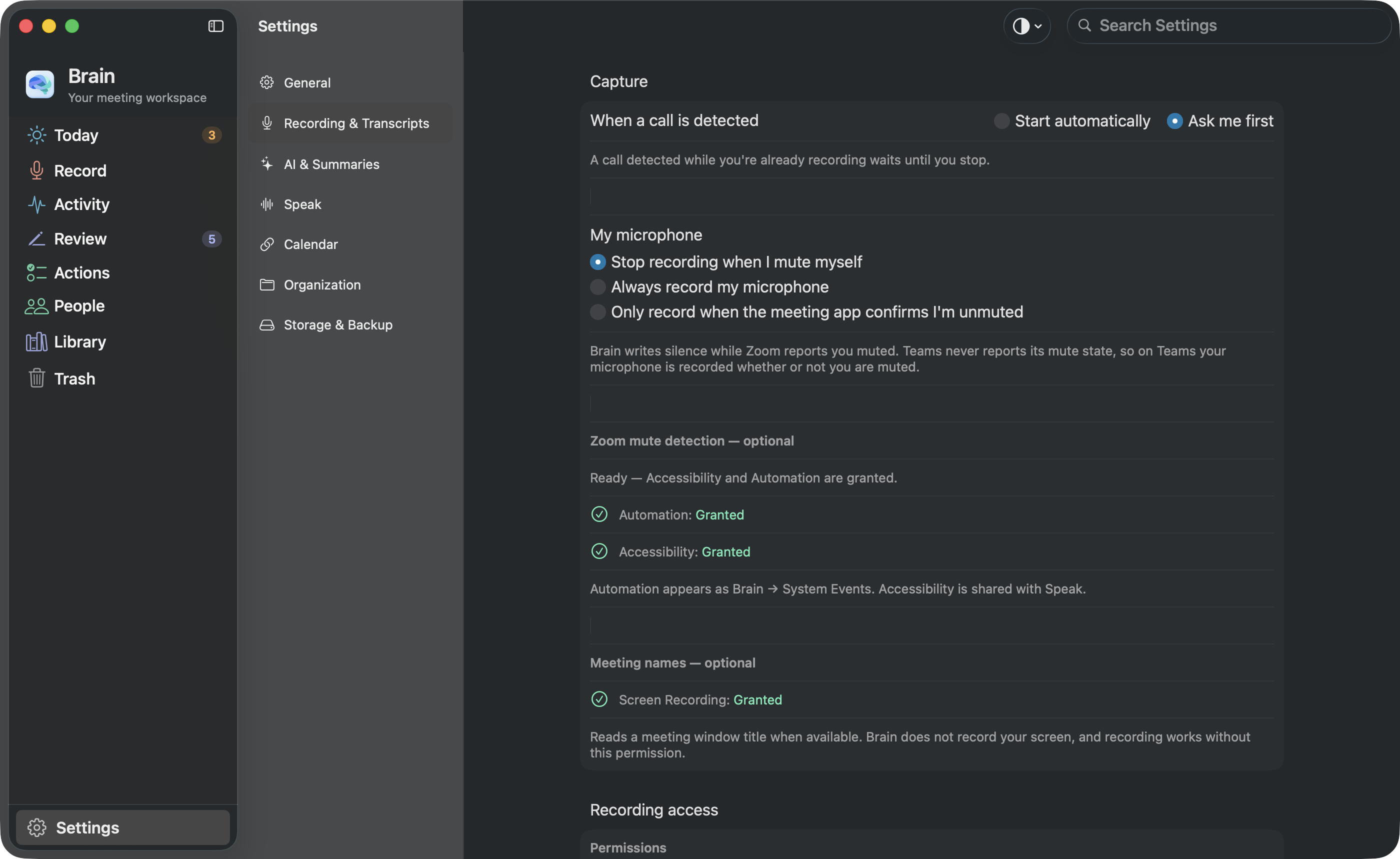
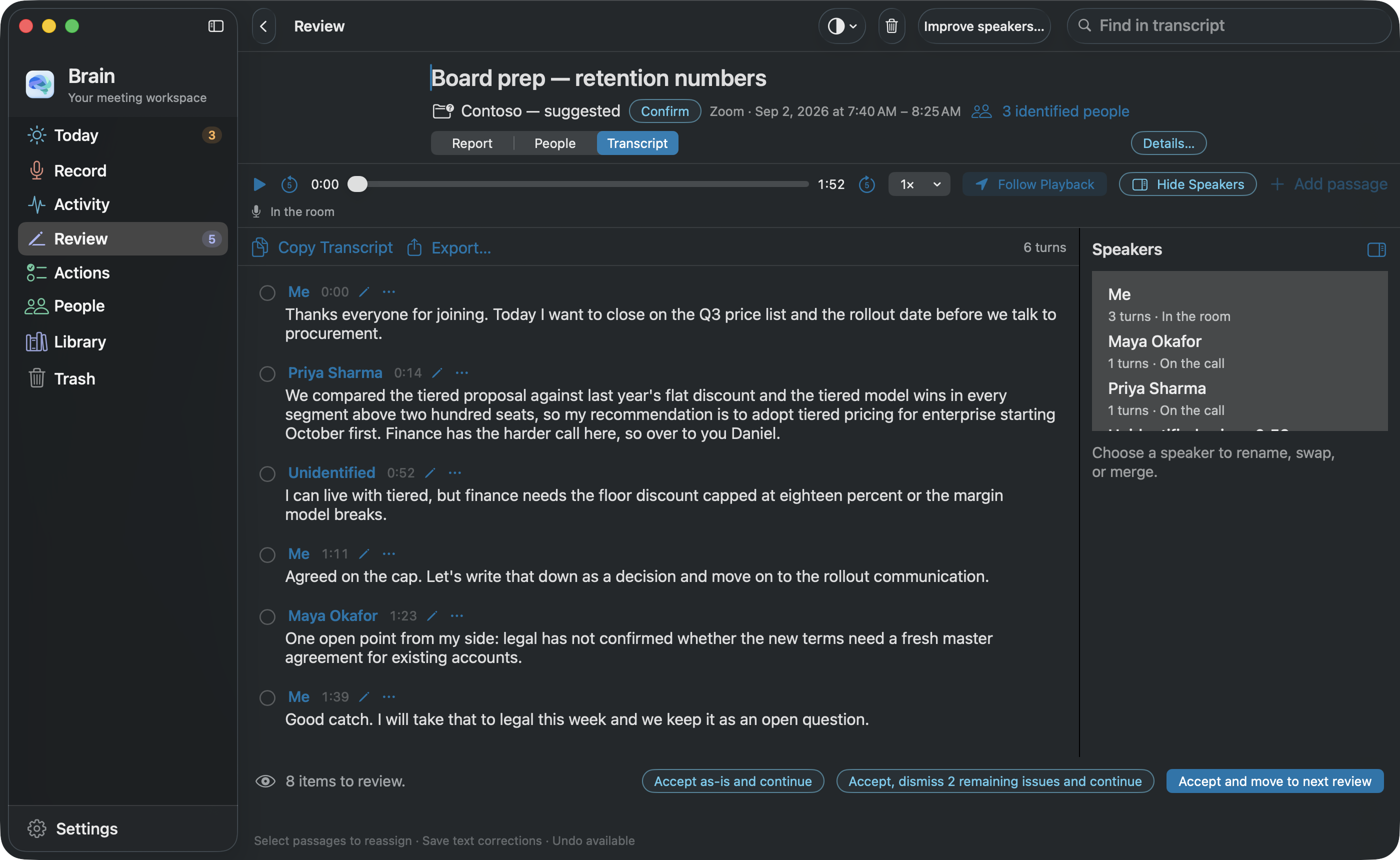
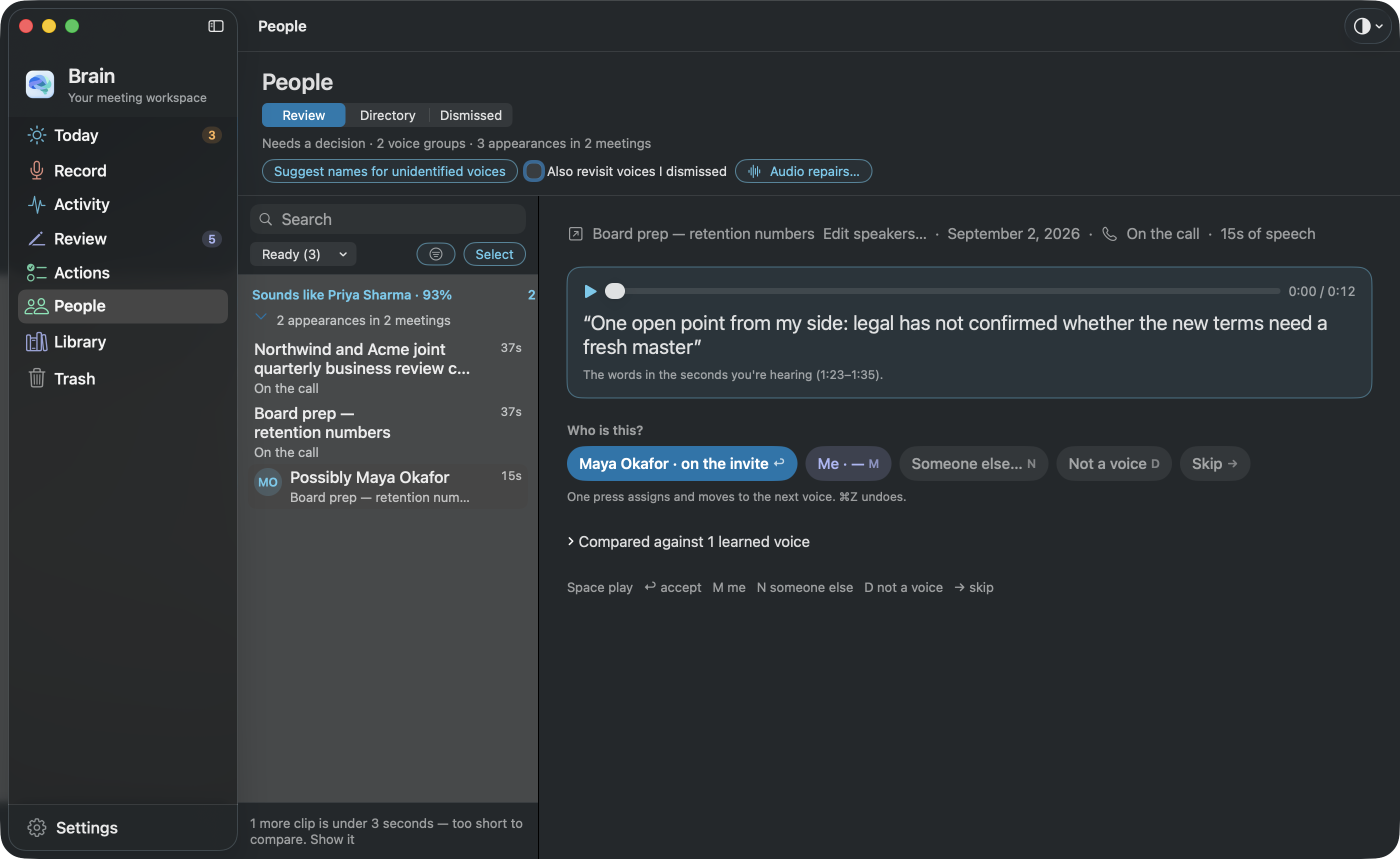
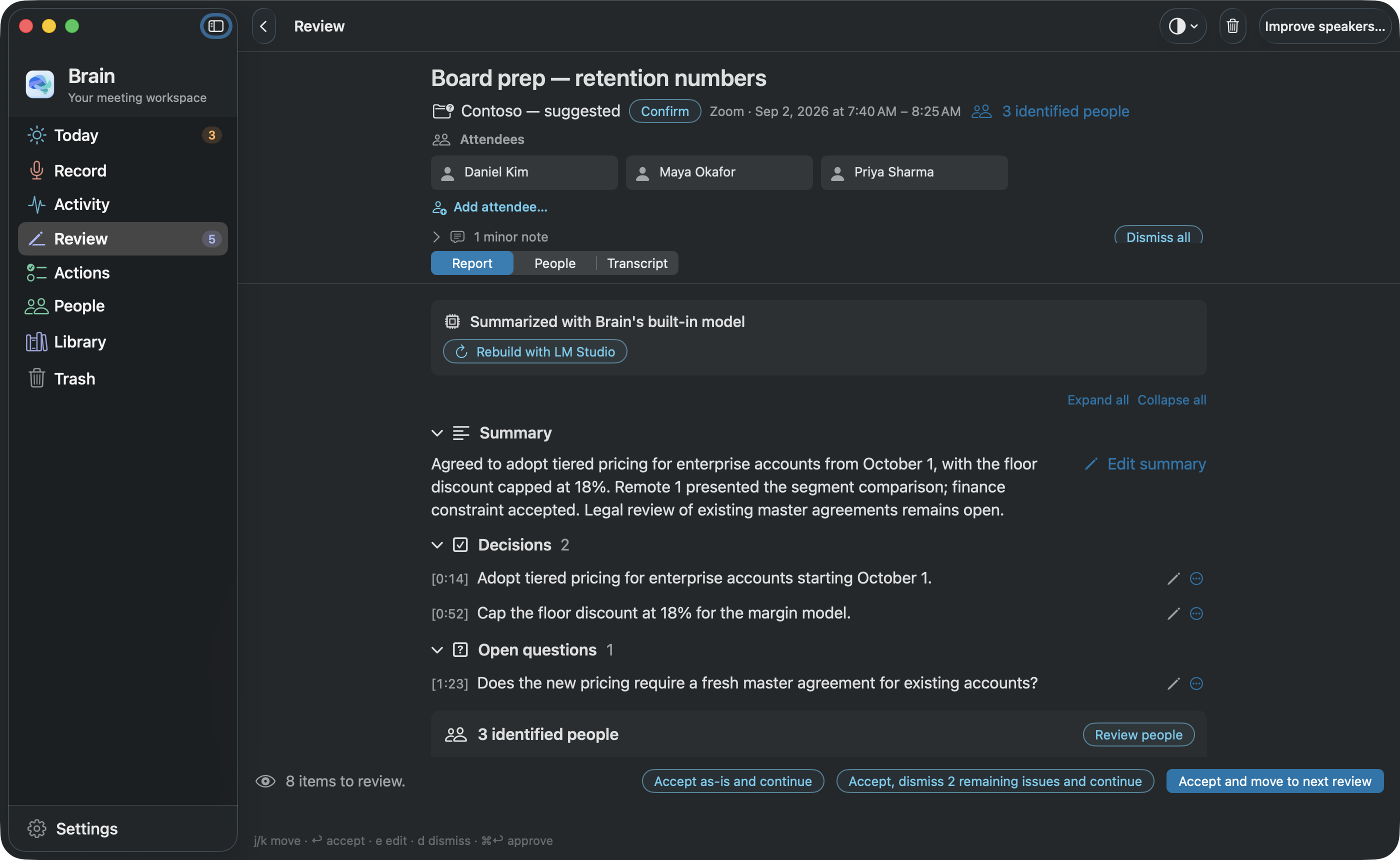
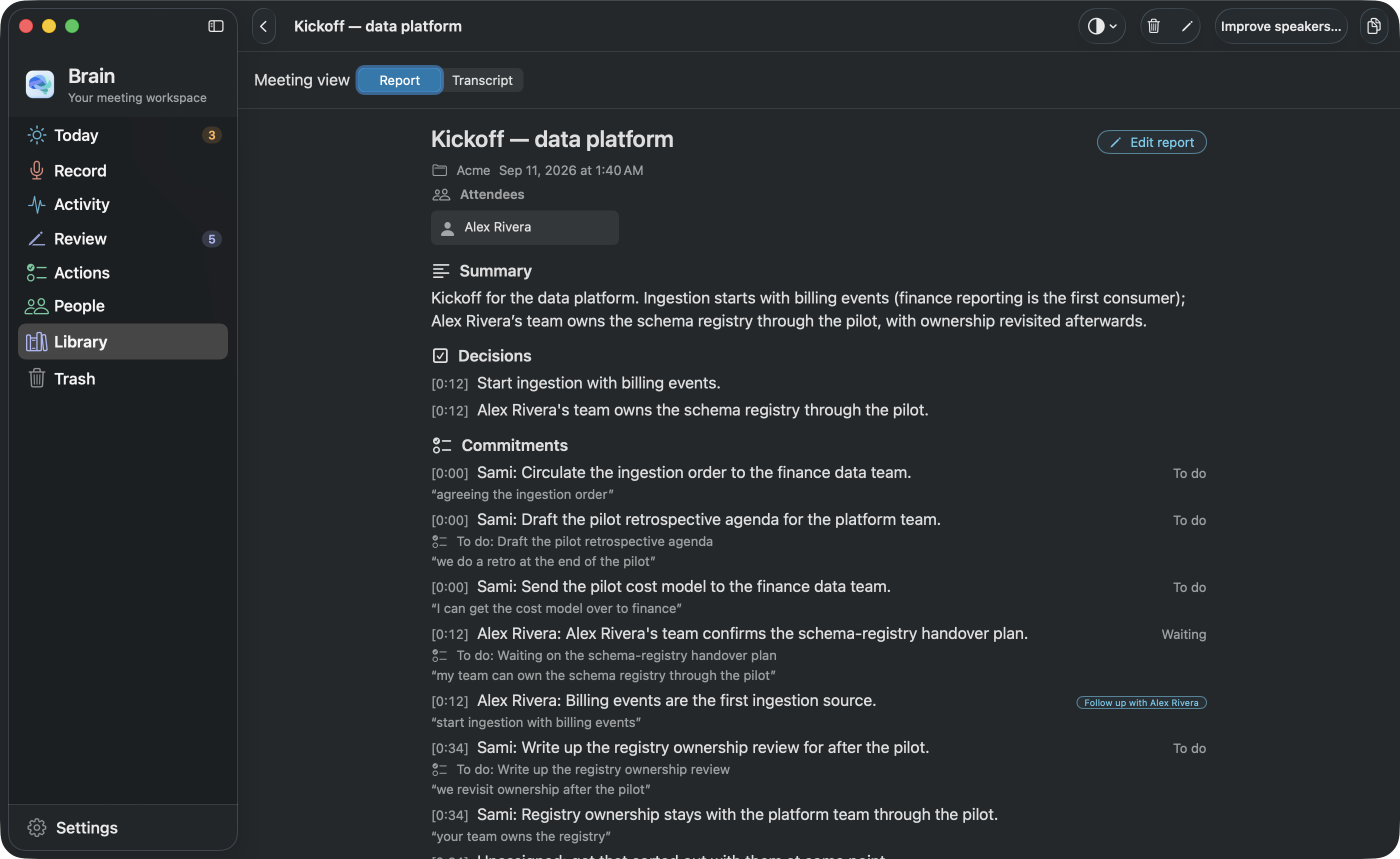
The Mac screenshots come from a test build of the same source as Brain 0.2.59, the version offered for download. The app ran in a separate, empty account set up just for this and filled with sample content, so no real meeting, voice, or setting appears. Each image is a screenshot of that running app’s window in dark mode, taken at double resolution so the text stays sharp, on September 11, 2026 (Edmonton time). The close-ups are cut straight out of those same screenshots.
We have not redrawn controls, changed labels, recolored the app, or inserted invented elements into a screenshot. The homepage moves and zooms these images; it does not show a running app. The exact area each close-up was cut from, and a fingerprint of every image file, are stored with the website’s files so the images can be checked against the originals.
How the Windows screenshots were taken
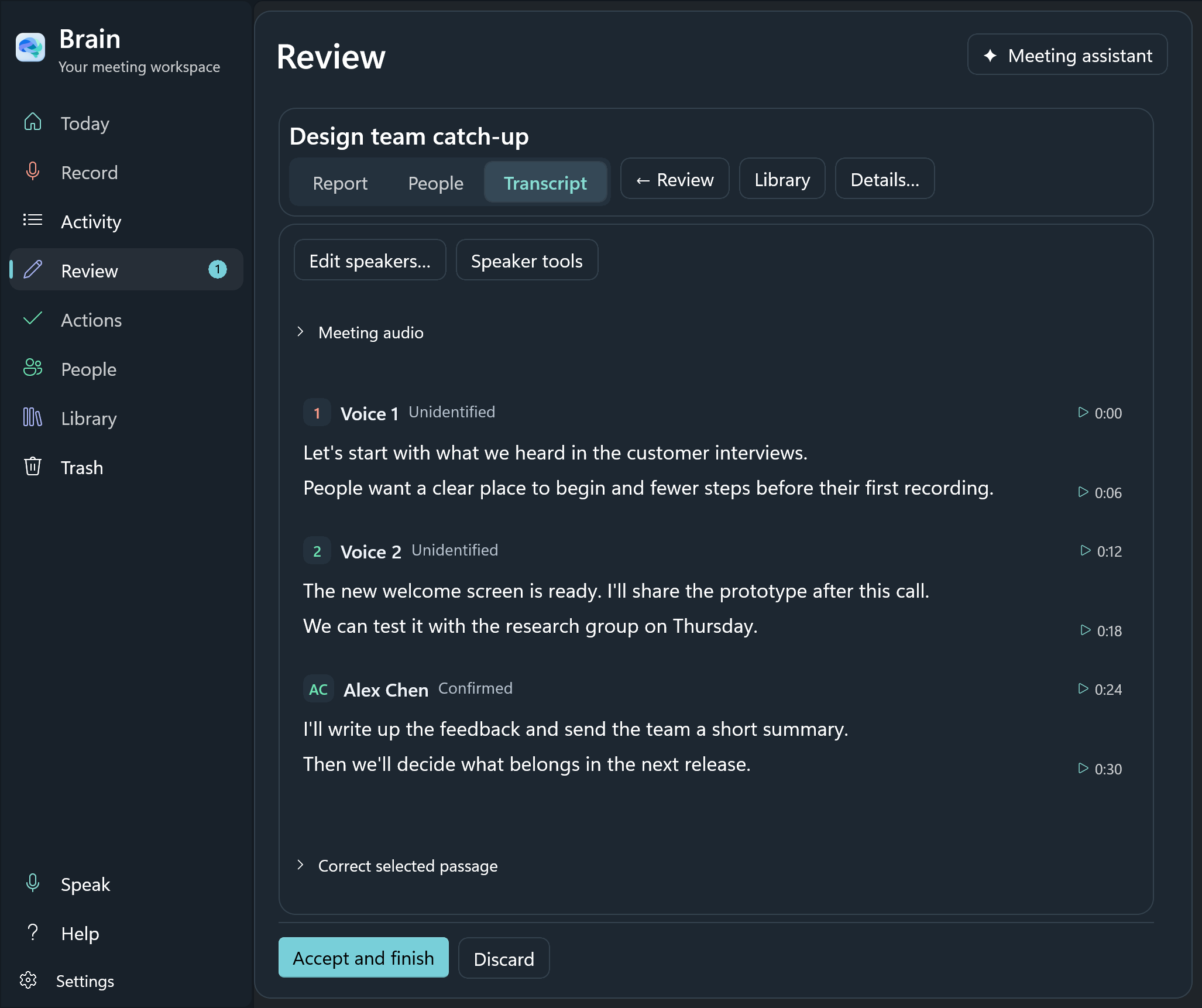
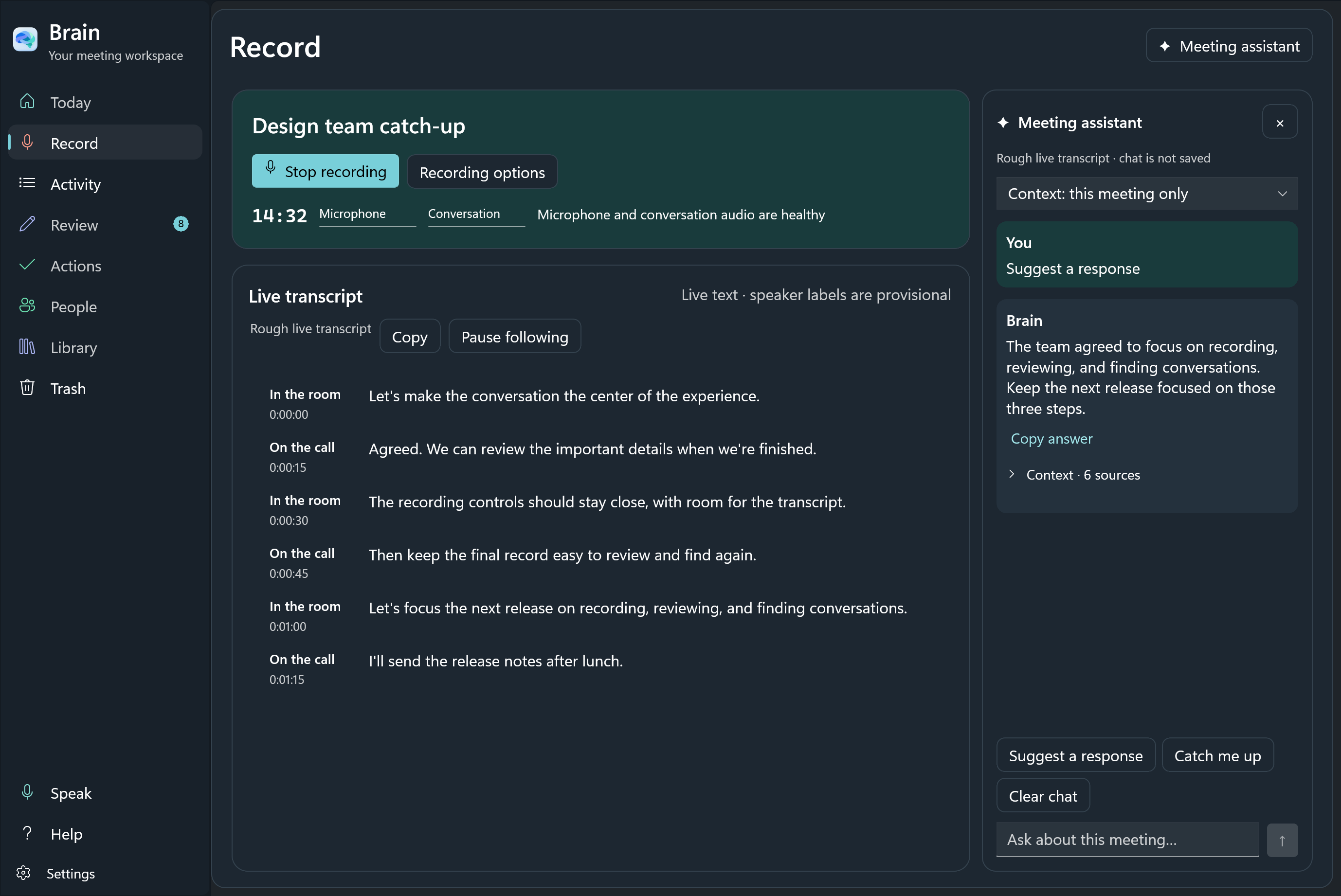
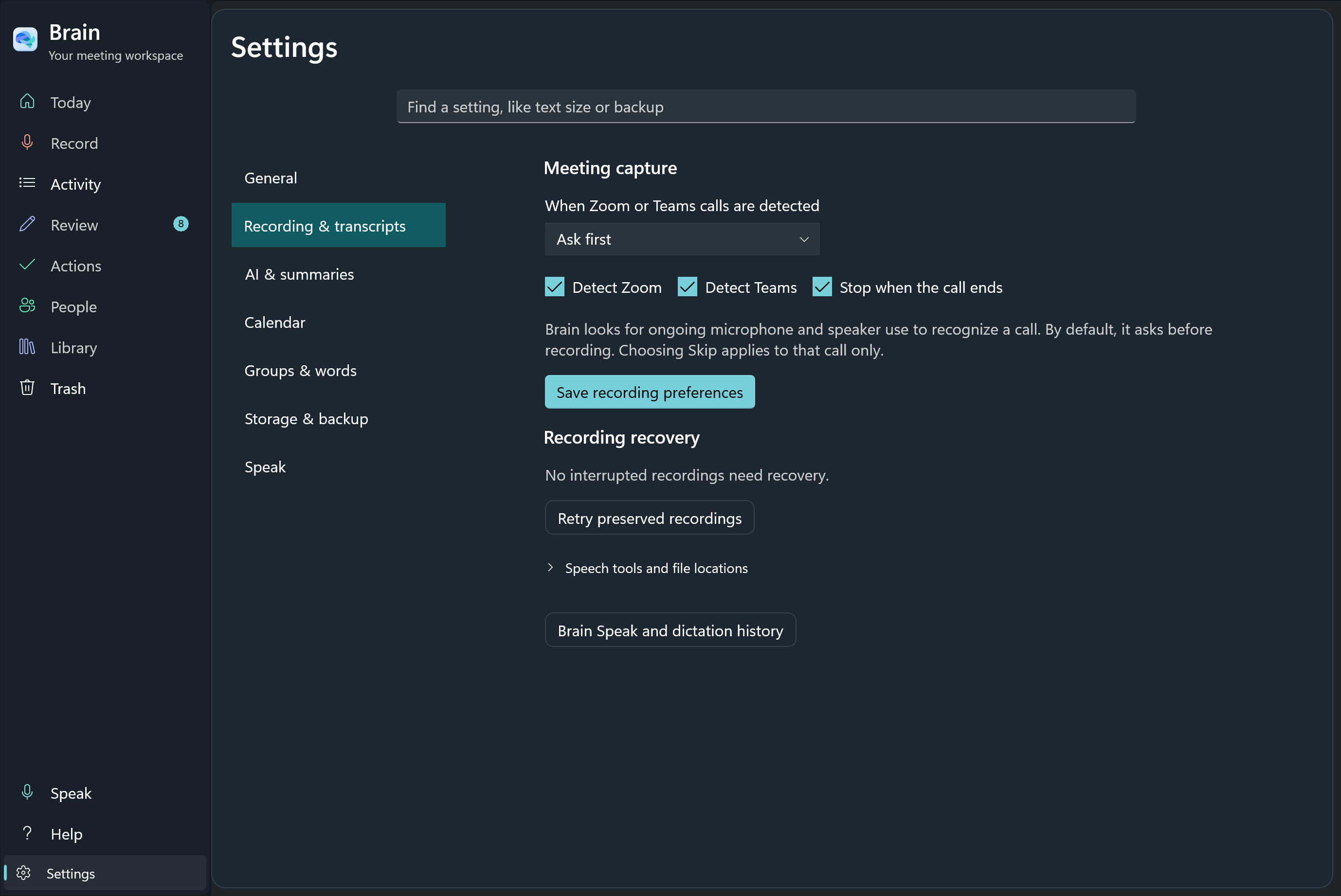
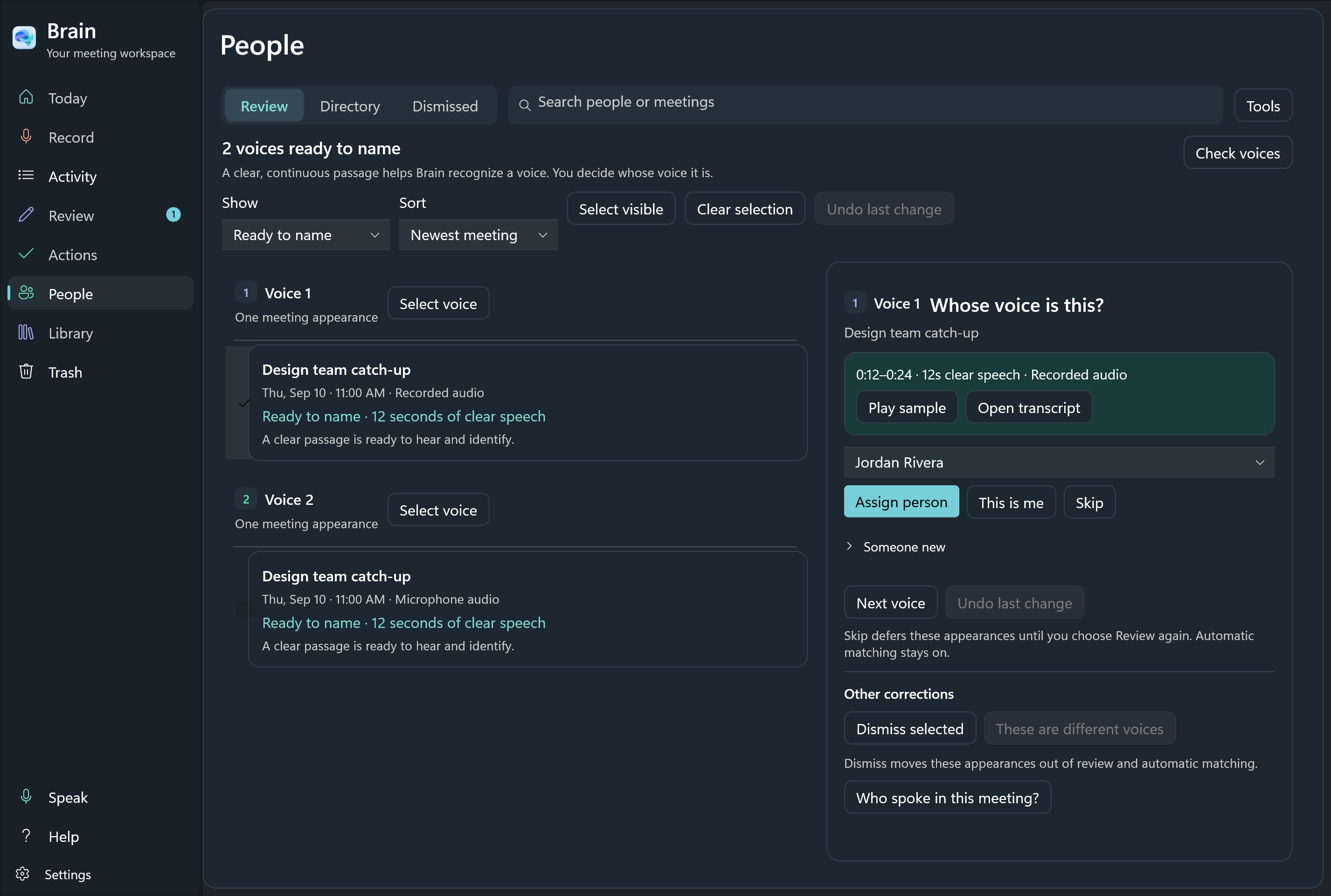
The Windows screenshots show the real app interface, unchanged, from the Windows version being built on Sami’s PC, taken on September 10, 2026 (Edmonton time). A separate test desktop and a fresh sample account keep personal meetings and settings out of the images.
The website shows those full screenshots and close-ups cut from them. The saved-transcript and People screenshots show the newer speaker interface; the others show slightly earlier test versions. All of them come from test builds, so they are not a promise about the preview you can download today. The Windows preview notes describe current release limitations.
What the sample content means
The meeting names, transcript passages, helper and assistant answers, voice-review samples, and Speak history are sample content. The recording timer, audio levels, audio-health messages, and the listening bar are real controls shown in sample states. They are not evidence that a real call, speech recognition, a microphone, or typing into another app worked.
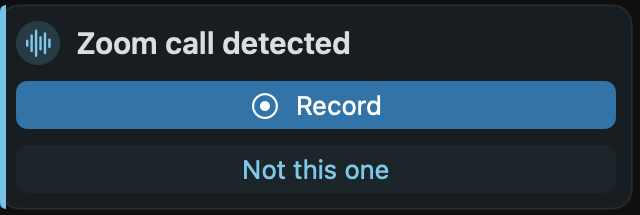
On the Mac, the live transcript and the meeting helper’s answer come from the app’s own built-in sample data; call detection is shown in its default “ask me first” setting; the voice-review sample plays a placeholder recording; the floating Speak bar is shown as it looks while listening, with no microphone actually running; and the Speak settings show an “Enable Accessibility to use Speak” warning above permission rows that read Granted. The test copy could not claim its Speak shortcut when it was opened for the screenshot, so that warning was still on screen. It says nothing about the released app. The Windows saved-meeting summary and assistant images come from an earlier walk-through of the Windows app, using a sample conversation answered by the model running on that PC.
Mac and Windows have different interfaces, so each platform’s story on the homepage uses only that platform’s captures. See the Mac setup guide or the Windows setup guide for the platform you use.
The Mac screenshots
The Windows screenshots